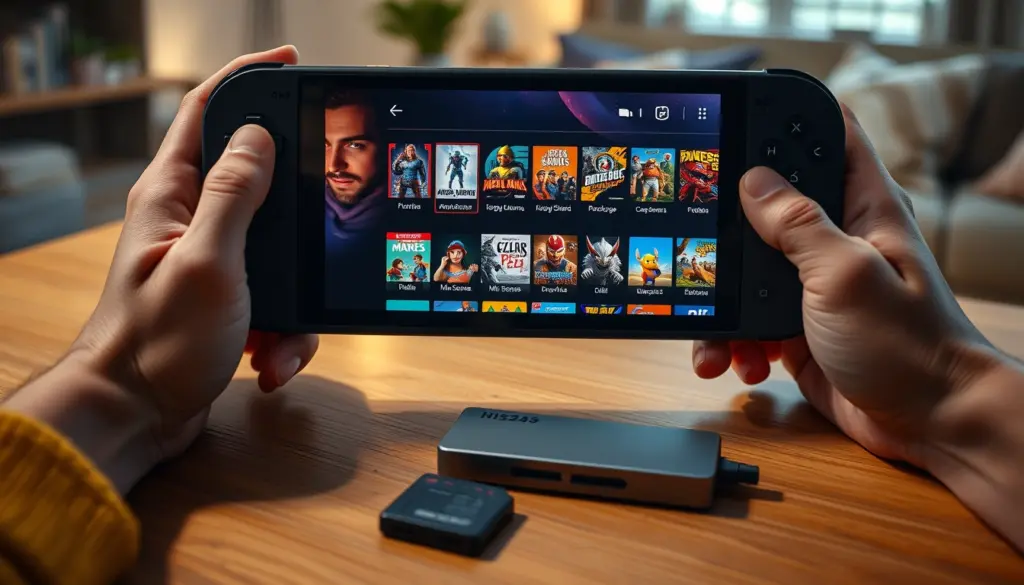
The Steam Deck is the most capable emulation handheld most people will ever own, but out of the box it does not play a single Super Nintendo, PlayStation 2, or GameCube game. Bridging that gap by hand means installing a dozen emulators, hunting down BIOS files, memorizing per-emulator controller maps, and wrestling artwork into the Steam library one title at a time. EmuDeck collapses that entire afternoon of work into a single guided installer. This tutorial walks through a complete EmuDeck setup on the Steam Deck in 12 steps: from Desktop Mode install to a finished library of retro games launching from Game Mode like native Steam titles.
Updated July 2026, this guide reflects the EmuDeck 2.4 release line and the current, post-litigation state of console emulation – including which emulators are actively maintained and which are now legacy. Budget roughly 30 minutes for the core EmuDeck setup (install, BIOS, and your first games), plus however long your own ROM collection takes to copy across. By the end you will have a working project: a Steam Deck configured for 20+ systems, with games, box art, and hotkeys wired up and ready to play on the couch.
What Is EmuDeck, and Why Bother?
EmuDeck is a free, open-source configuration tool – not an emulator itself, and not a source of games. It is a single setup script that downloads and installs every major emulator, builds a clean, standardized folder layout for your ROMs and BIOS files, applies sensible default settings, wires up universal hotkeys, and pushes your games into Steam so they launch straight from Game Mode. Think of it as the general contractor that hires and coordinates two dozen specialist emulators on your behalf, then hands you the keys.
The project is under active, continuous development. The EmuDeck codebase is maintained on GitHub, and the 2.4 release (March 2025) – the version most readers will install today – added optional ES-DE (EmulationStation Desktop Edition) frontend integration, a built-in BIOS Checker that verifies your firmware files, and support for newer emulators such as Azahar (Nintendo 3DS) and Citron (an experimental Nintendo Switch emulator). Because EmuDeck updates its bundled emulators continuously, the golden rule is simple: always download the latest installer rather than reusing an old copy.
Why use EmuDeck rather than configuring emulators manually? Three reasons. First, speed: the guided installer handles in ten to twenty minutes what would otherwise take hours of trial and error. Second, consistency: every emulator gets a shared control scheme, so the same button combination brings up the quick menu whether you are playing a Game Boy Advance or a PlayStation 2 title. Third, integration: EmuDeck’s use of Steam ROM Manager means your emulated games appear alongside your regular Steam library, complete with box art and logos, and are fully controllable in Game Mode without ever touching a mouse. EmuDeck also runs on other SteamOS handhelds, the ASUS ROG Ally, and on Windows – but the Steam Deck remains its flagship target, and this guide focuses on the SteamOS experience.
Is EmuDeck Legal? BIOS, ROMs, and the Switch Emulation Reckoning
This is the most important section in the guide, so it comes before the how-to. Emulator software is legal. United States courts have repeatedly upheld that writing and distributing an emulator – a program that mimics another system’s hardware – does not by itself infringe copyright. EmuDeck installs only legal emulator software. What EmuDeck deliberately does not do is supply games, BIOS files, or firmware. Those are copyrighted, and the legally defensible way to obtain them is to dump them from hardware and cartridges or discs you personally own. EmuDeck ships zero copyrighted content and links to none; the responsibility for a legitimate ROM and BIOS collection is entirely yours.
The emulation landscape shifted sharply in 2024, and any current guide has to account for it. In March 2024, the developers of Yuzu – the leading Nintendo Switch emulator – settled a lawsuit with Nintendo for $2.4 million and shut the project down “effective immediately,” taking the associated Citra 3DS emulator with it. Later in 2024, the rival Switch emulator Ryujinx also ceased public development after Nintendo approached its lead developer. Both projects still appear in EmuDeck’s supported-emulators list for users who preserved older builds, but neither is a fresh install target in 2026. In practical terms, treat Switch emulation as legacy: the actively developed successors that have emerged are experimental at best, and Nintendo’s posture toward them is aggressive.
The takeaway for a responsible setup: emulate the systems whose games you own, dump your own BIOS and ROMs, and understand that the newest consoles (Switch and up) sit in the most contested legal territory. The overwhelming majority of the fun – everything from the NES through the PlayStation 3 and original Xbox – rests on far more settled ground and is exactly where EmuDeck shines. For a deeper background on how copyright and preservation intersect in gaming, our coverage of the Stop Killing Games petition is a useful companion read.
Prerequisites: What You Need Before You Start
EmuDeck is forgiving, but a smooth install depends on a few things being in place first. The single most common reason a setup goes sideways is insufficient or slow storage, followed closely by missing BIOS files. Sort both out before you begin and the rest is almost frictionless. Here is the complete prerequisite checklist with recommended specifications.
| Requirement | Recommended | Notes |
|---|---|---|
| Device | Steam Deck (LCD or OLED), or any SteamOS handheld / ROG Ally | OLED and higher-wattage handhelds handle demanding cores (PS3, Wii U) better |
| Operating system | SteamOS (current), Desktop Mode access | Reachable via Steam button → Power → Switch to Desktop |
| Storage | 256 GB+ free, on a fast microSD or USB SSD | A high-speed UHS-I microSD is the minimum; a USB-C SSD is ideal for PS2/PS3 libraries |
| EmuDeck version | 2.4 release line (always the latest installer) | Downloaded fresh from emudeck.com each time |
| Internet | Stable Wi-Fi | The installer downloads several gigabytes of emulators |
| Your BIOS files | Dumped from hardware you own | Required for PS1, PS2, PS3, Dreamcast, Sega CD and a few others |
| Your ROMs | Dumped from your own cartridges/discs | Organized by system, ready to copy |
| Optional: keyboard | USB or Bluetooth | Makes Desktop Mode setup far quicker than the on-screen keyboard |
A word on storage, because it matters more than anything else here. Emulation is read-heavy: the system streams large disc images off your storage while it plays. A cheap, slow microSD card produces stuttering and long load times no amount of settings tweaking will fix. If you are only emulating 8- and 16-bit systems, any decent UHS-I card is fine. If you intend to run PlayStation 2, GameCube, Wii, or PlayStation 3 games, invest in a fast card rated for high sustained read speeds, or better still an external USB-C SSD. If you are still deciding which handheld to buy for this, our Legion Go S vs Steam Deck comparison and Steam Deck vs ROG Ally breakdown weigh the storage and performance trade-offs.
The Emulators EmuDeck Installs – and What They Play
EmuDeck’s supported-emulators list currently includes more than two dozen standalone emulators, plus RetroArch, which on its own bundles well over 100 additional “cores” for classic 8- and 16-bit systems. That is where the “160 emulators” figure you will see repeated online comes from – it counts every RetroArch core individually. The more useful way to think about it: EmuDeck sets up a purpose-built standalone emulator for each demanding modern system, and hands the retro back catalog to RetroArch. The table below maps the standalone emulators EmuDeck configures to the hardware they reproduce, and flags anything experimental or legacy.
| Emulator | System(s) | Status / Notes |
|---|---|---|
| RetroArch | NES, SNES, Genesis, Game Boy, PC Engine and 100+ more via cores | The multi-system workhorse; primary engine for retro consoles |
| Dolphin | Nintendo GameCube & Wii | Excellent maturity; no BIOS needed |
| PrimeHack | Metroid Prime trilogy (Dolphin fork) | Adds mouse-look style controls |
| DuckStation | Sony PlayStation 1 | Requires PS1 BIOS |
| PCSX2 | Sony PlayStation 2 | Requires PS2 BIOS |
| RPCS3 | Sony PlayStation 3 | Requires PS3 firmware, installed in-app |
| ShadPS4 | Sony PlayStation 4 | Experimental; early compatibility |
| PPSSPP | Sony PSP | Runs well even on LCD Decks |
| Vita3K | Sony PlayStation Vita | Experimental |
| RMG | Nintendo 64 | Rosalie’s Mupen GUI |
| melonDS | Nintendo DS | Dual-screen handling built in |
| mGBA | Nintendo Game Boy Advance | Highly accurate |
| Lime3DS / Azahar | Nintendo 3DS | Community successors to Citra |
| Citra | Nintendo 3DS | Legacy – development ceased March 2024 |
| Citron | Nintendo Switch | Experimental successor; contested legally |
| Yuzu / Ryujinx | Nintendo Switch | Legacy – both shut down in 2024 |
| Cemu | Nintendo Wii U | Mature; demanding on weaker handhelds |
| Flycast | Sega Dreamcast & NAOMI | Requires Dreamcast BIOS |
| Xemu | Microsoft original Xbox | Requires Xbox BIOS/HDD image |
| Xenia | Microsoft Xbox 360 | Experimental; variable compatibility |
| MAME | Arcade machines | Per-game ROM and BIOS requirements |
| Model2 / Supermodel | Sega Model 2 & Model 3 arcade | Classic Sega arcade hardware |
| BigPEmu | Atari Jaguar | Best-in-class Jaguar emulation |
| ScummVM | Point-and-click adventure games | Runs the game engines directly |
You do not need every one of these. During a Custom Mode install, EmuDeck lets you deselect emulators for systems you do not care about, keeping the download smaller and your library tidier. A sensible starter set for most people is RetroArch (for everything up to the 16-bit era), Dolphin, DuckStation, PCSX2, and PPSSPP – five emulators that cover an enormous share of gaming history without needing a high-wattage handheld.
Part 1 – Install EmuDeck (Steps 1–4)
The install itself is the easy part. Everything below happens in Desktop Mode, which turns your Steam Deck into a standard Linux desktop for a few minutes. A connected keyboard makes this smoother, but the on-screen keyboard (Steam + X) works too.
Step 1 – Switch to Desktop Mode
Press the Steam button, scroll down to Power, and select Switch to Desktop. The Deck drops out of the console-style Game Mode into the KDE Plasma desktop. This is regular Linux – you have a taskbar, a file manager (Dolphin, confusingly sharing a name with the GameCube emulator), a web browser, and a terminal called Konsole. If you want to confirm you are on SteamOS and check your build, open Konsole and run:
cat /etc/os-release

# Example output:
# NAME="SteamOS"
# PRETTY_NAME="SteamOS"
# VARIANT_ID=steamdeck
# BUILD_ID=20250...
If you are running an alternative gaming OS rather than stock SteamOS, EmuDeck still works – the desktop steps are nearly identical. Our Bazzite vs SteamOS comparison explains the differences between the popular options, and the SteamOS 3.8 rollout to more handhelds covers where else this same setup applies.
Step 2 – Download the EmuDeck installer
Open the web browser and go to the official site, emudeck.com. Download the installer for SteamOS – it is a small .desktop launcher file, not the emulators themselves (those download later). Critically, once it finishes downloading, drag the file out of your Downloads folder and onto the Desktop. This is not a cosmetic preference: the installer frequently fails to execute correctly when run from inside the Downloads folder, and moving it to the Desktop is the single most common fix for a first-run failure. Only ever download EmuDeck from emudeck.com or its official GitHub – the tool’s popularity has spawned imitation sites and misleading “tutorial” pages that are best avoided.
Step 3 – Run the installer and choose Custom Mode
Double-click the EmuDeck icon on your Desktop. The EmuDeck application launches and offers two paths: Easy Mode and Custom Mode. Easy Mode asks almost nothing, applies EmuDeck’s defaults, and only lets you pick your storage location and how deeply it integrates with your system. Custom Mode is labeled for advanced users, but it is the right choice for almost everyone doing a deliberate setup, because it lets you choose exactly which emulators to install and configure RetroAchievements, screen bezels, aspect ratios, shaders, controller layouts, and cloud saves along the way. Choose Custom Mode. You can change any of these decisions later, so do not agonize over them.
Step 4 – Pick your storage and install the emulators
EmuDeck now asks where to build its library. You can choose internal storage, your microSD card, or external USB storage. For most people, the microSD card is the right call – it keeps your emulation library separate from your SteamOS install and games. Whatever you pick, EmuDeck creates its folder structure there and remembers it. Next, deselect any emulators you do not need, confirm your selections, and let EmuDeck download and configure everything. On a good Wi-Fi connection this takes roughly 10 to 20 minutes. When it finishes, EmuDeck offers to set up cloud saves and drops a Steam ROM Manager shortcut you will use shortly. The emulators are now installed – but they have no games yet. That is Part 2.
Part 2 – Build Your ~/Emulation Library: BIOS and ROMs (Steps 5–7)
EmuDeck’s real trick is that it imposes one consistent, predictable folder structure that every bundled emulator already knows how to read. Understand this layout and the rest of the process is just copying files into the right boxes.
Step 5 – Understand the ~/Emulation folder
Wherever you told EmuDeck to build its library, it creates a top-level Emulation directory. On internal storage this lives at ~/Emulation; on an SD card it sits at the card’s root. Inside, the structure looks like this:
Emulation/
├── bios/              # All BIOS and firmware files go here (flat, no extra folders)
│   └── dc/            # Exception: Dreamcast BIOS goes in this subfolder
├── roms/              # Your games, one subfolder per system
│   ├── snes/
│   ├── psx/           # PlayStation 1
│   ├── ps2/
│   ├── gamecube/
│   ├── gba/
│   └── ...            # A subfolder for every supported system
├── saves/             # Save files and save states, centralized
├── storage/           # Screenshots, shaders, other emulator data
└── tools/             # Steam ROM Manager and EmuDeck's own utilities
Two rules save enormous frustration. First, ROMs go into the correctly named system subfolder inside roms/ – a SNES game in roms/snes, a PlayStation game in roms/psx. EmuDeck and Steam ROM Manager identify games by which folder they are in, so a PS2 ISO dumped into the SNES folder will simply never appear. Second, BIOS files go directly into bios/ as loose files with no extra subfolders – with the single documented exception of the Dreamcast, whose files belong in bios/dc/. The complete, authoritative reference for folder names and file locations is EmuDeck’s BIOS and ROMs cheat sheet; keep it open in a browser tab while you work.
Step 6 – Add your BIOS files
Copy your legally dumped BIOS files into the bios/ folder. You can do this with the graphical file manager, but the terminal is faster and less error-prone. Assuming your BIOS files are on a USB drive mounted under /run/media/, the pattern looks like this:
# Move into your BIOS folder (internal-storage example)
cd ~/Emulation/bios

# Copy PlayStation 1 BIOS files from a mounted USB drive
cp /run/media/deck/MYUSB/bios/scph5501.bin .

# Create the Dreamcast subfolder and place its BIOS there
mkdir -p dc
cp /run/media/deck/MYUSB/bios/dc_boot.bin dc/

# Confirm the files landed where you expect
ls -lh
ls -lh dc/
EmuDeck 2.4’s built-in BIOS Checker is your safety net here. Launch the EmuDeck app, open the BIOS Checker tool, and it verifies each file against the expected checksum, showing green for correct files and flagging anything missing or corrupt. This is far more reliable than eyeballing filenames, because a BIOS with the right name but a wrong or bad dump will fail silently at game launch. Run the checker before you move on.
Step 7 – Copy your ROMs by system
Now copy your games into their matching subfolders under roms/. For a large collection, rsync is worth using over a plain copy because it shows progress and can resume if interrupted:
# Copy an entire SNES library from USB, with progress
rsync -ah --progress /run/media/deck/MYUSB/snes/ ~/Emulation/roms/snes/

# Copy PlayStation 2 disc images (large files – put these on fast storage)
rsync -ah --progress /run/media/deck/MYUSB/ps2/ ~/Emulation/roms/ps2/

# Check how much space your library is using and what's free
df -h ~/Emulation
A few format notes that trip people up: multi-disc PlayStation games play best as a single .m3u playlist file listing each disc, which lets you swap discs from the in-game menu. Disc-based games in general benefit from being converted to compressed .chd format, which shrinks PS1, PS2, Sega CD, and Dreamcast images substantially with no loss – EmuDeck even bundles a tool to batch-convert them. Cartridge-based systems generally accept a plain ROM file per game. When the copying is done, you have a full library on disk. The final job is making it playable from the couch.
Which Systems Require BIOS Files
Missing or wrong BIOS files are the second-biggest cause of “it installed but the game won’t launch” reports, right after storage problems. The confusion is that some systems need BIOS and some do not, and it is not obvious which is which. The rule of thumb: cartridge-based consoles generally boot fine without BIOS because the cartridge contained everything; disc-based and more complex systems often need the console’s boot ROM. This table summarizes the common cases; the cheat sheet linked above has the exhaustive list and exact checksums.
| System | BIOS required? | Example filename(s) | Folder |
|---|---|---|---|
| PlayStation 1 | Yes | scph5500.bin (JP), scph5501.bin (US), scph5502.bin (EU) | bios/ |
| PlayStation 2 | Yes | Regional variants, e.g. SCPH-70004_BIOS_V12_EUR_200.BIN | bios/ |
| PlayStation 3 | Yes (firmware) | Installed inside RPCS3, not a loose file | via RPCS3 |
| Sega CD / Mega CD | Yes | bios_CD_U.bin, bios_CD_E.bin, bios_CD_J.bin | bios/ |
| Sega Dreamcast | Yes | dc_boot.bin | bios/dc/ |
| Original Xbox | Yes | BIOS + HDD image | bios/ |
| NES / SNES / N64 | No | — | — |
| GameCube / Wii | No | — | — |
| Genesis / Master System | No | — | — |
| Game Boy / GBA | No (optional) | GBA boot ROM optional for boot animation | bios/ |
PlayStation 3 deserves a special note because it works differently. RPCS3 does not use a loose BIOS file; instead you install Sony’s official PS3 firmware (a .PUP file you download from your own console or Sony’s servers) from inside RPCS3’s own menu. If you plan to emulate PS3 games, do this firmware install step in RPCS3 before expecting anything to boot. Everything else on the “Yes” list is a straightforward matter of dropping the correctly named file into bios/ and letting the BIOS Checker confirm it.
Part 3 – Push Games into Game Mode with Steam ROM Manager (Steps 8–9)
Your games are on disk and your emulators are configured, but so far you would still have to open Desktop Mode and launch each emulator by hand – hardly the console experience. Steam ROM Manager is the tool that fixes this, scanning your roms/ folders, downloading artwork, and adding every game to your Steam library as its own entry.
Step 8 – Run Steam ROM Manager and preview your library
From the EmuDeck app (or the shortcut it created), launch Steam ROM Manager. It will ask you to close Steam first, because it needs to write to your Steam library files – let it. Steam ROM Manager comes preconfigured by EmuDeck with “parsers,” one per system, that already know where your ROMs live and which emulator should launch them. Click Preview and then Generate app list. Steam ROM Manager scans every roms/ subfolder, matches each game against online art databases, and shows you a preview grid of every title it found, complete with box art, logos, and hero banners.
Take a moment to scroll through the preview. This is where you catch problems early: if a whole system shows zero games, its ROMs are probably in the wrong folder or in an unsupported format. If individual games have the wrong art, you can fix them here. You can also exclude titles you do not want cluttering your Steam library. Nothing is written to Steam until you confirm.
Step 9 – Add everything to Steam and return to Game Mode
When the preview looks right, click Save app list. Steam ROM Manager writes all those games into your Steam library as shortcuts, each pointed at the correct emulator with the correct launch options. Close Steam ROM Manager, then return to Game Mode: from the Desktop, double-click the “Return to Gaming Mode” icon, or use the Steam button menu. Back in Game Mode, open your library and filter by “Non-Steam” or browse the collections EmuDeck created – you will find your emulated games sitting there with full artwork, launchable with a single A-press, exactly like any Steam game. That is the payoff: a couch-ready retro console built into your Steam Deck.
Whenever you add more ROMs later, the workflow is simply: copy the new games into the right roms/ subfolder, run Steam ROM Manager again, and save the app list. It is smart enough to add only what is new. Building a game library this way is conceptually similar to running a persistent game service – if that appeals to you, our step-by-step guides to a Minecraft server and a Valheim dedicated server apply the same methodical approach to multiplayer hosting.
Part 4 – Configure, Optimize, and Play (Steps 10–12)
The setup works now, but a few final touches turn a functional install into a great one: learning the universal controls, tuning performance for your specific handheld, and knowing where per-game settings live.
Step 10 – Learn the universal EmuDeck hotkeys
One of EmuDeck’s best features is that it maps the same hotkey combinations across every emulator, so you do not have to relearn controls per system. The hotkeys are triggered by holding a “hotkey” button – on the Steam Deck this is the rear L4 paddle by default, or the Select button in some layouts – together with a face or shoulder button. The essentials:
| Action | Typical combination | Why you’ll use it |
|---|---|---|
| Open the emulator quick menu | Hotkey + A / Start | Access every emulator setting mid-game |
| Save state | Hotkey + R1 | Instant checkpoint, anywhere |
| Load state | Hotkey + L1 | Jump back to your last save state |
| Fast-forward | Hotkey + R2 | Skip grind and slow text |
| Toggle rewind | Hotkey + L2 | Undo a mistake second-by-second |
| Exit the game | Hotkey + B / Start+Select | Return cleanly to your library |
| Screenshot | Hotkey + D-pad | Capture the moment |
The single most important one to memorize is “exit the game,” because emulators launched as Steam shortcuts do not always close with the usual Steam button menu – using the hotkey exit avoids leaving an emulator running in the background. If you invested in the new Steam Controller for docked play, the same hotkey logic carries over to it.
Step 11 – Tune performance for your handheld
EmuDeck’s defaults are conservative and safe, which means there is performance left on the table for anyone willing to tweak. Start in Game Mode’s Quick Access menu (the “…” button), where the per-game performance panel lets you set a TDP limit, a manual GPU clock, and a frame-rate cap. For demanding systems like GameCube, Wii, and PS2, capping the refresh rate at a stable 40 Hz on an OLED Deck often feels better than an uneven 60. For light 16-bit systems, lowering the TDP dramatically extends battery life with zero downside. Set these per-game and Game Mode remembers them for that title.
For system-level gains, the community tool CryoUtilities (available from its own official GitHub project) adjusts SteamOS memory settings – most notably enlarging the swap file and disabling swappiness – which measurably helps memory-hungry emulators like RPCS3 and Cemu. It is optional and separate from EmuDeck, but widely used alongside it. Inside individual emulators, the biggest visual win is raising the internal resolution: Dolphin and PCSX2 can render original games at 4x or higher, turning a blurry PS2 title into something startlingly sharp – though push it too far on an LCD Deck and you will trade frame rate for pixels.
Step 12 – Know where per-game settings live
Finally, understand the two layers of configuration. Global defaults are what EmuDeck applied during install; you change these by opening the emulator directly in Desktop Mode and editing its settings, which then apply to every game it runs. Per-game overrides let you fix one troublesome title without disturbing the rest – most standalone emulators (Dolphin, PCSX2, DuckStation) offer a right-click “Properties” or “Game settings” option in Desktop Mode for exactly this. When a specific game misbehaves, resist the urge to change global settings; make a per-game override instead. With that, your EmuDeck project is complete: 20+ systems installed, a full library in Game Mode, universal controls learned, and performance dialed in.
Common Pitfalls to Avoid
Most failed EmuDeck setups trace back to the same handful of mistakes. Knowing them in advance saves hours.
- Running the installer from Downloads. The number-one first-run failure. Always drag the
.desktopinstaller to the Desktop before double-clicking it. - Cheap, slow storage. A bargain microSD card causes stutter and long loads that look like emulator bugs but are really I/O bottlenecks. Buy a fast card, or use a USB SSD for PS2/PS3.
- ROMs in the wrong folder. Steam ROM Manager identifies games by folder. A PS1 game in
roms/ps2will silently never appear. Match every game to its system subfolder. - Assuming every system needs BIOS – or that none do. Cartridge systems usually need nothing; disc systems (PS1, PS2, Sega CD, Dreamcast) usually do. Guessing wastes time; check the table and run the BIOS Checker.
- Forgetting to close Steam before Steam ROM Manager. It cannot write shortcuts while Steam is open, and skipping this leads to games that never show up.
- Expecting Switch or PS4 games to “just work.” Switch emulation is legacy and legally fraught; PS4 (ShadPS4) and Xbox 360 (Xenia) are experimental. Set expectations accordingly and do not judge EmuDeck by its most bleeding-edge cores.
Troubleshooting EmuDeck: 8 Common Fixes
When something does go wrong, the symptoms are usually diagnostic. Work down this list from top to bottom – the earlier items are far more common than the later ones.
| Symptom | Likely cause | Fix |
|---|---|---|
| Installer won’t launch or closes instantly | Run from Downloads folder | Move the .desktop file to the Desktop and re-run |
| A whole system shows no games in Steam ROM Manager | ROMs in wrong folder or unsupported format | Verify files are in the correct roms/ subfolder; convert discs to .chd |
| Game launches to a black screen then quits | Missing or bad BIOS | Run EmuDeck’s BIOS Checker; re-dump the flagged file |
| Games don’t appear in Game Mode after saving | Steam was open during the save | Close Steam, re-run Steam ROM Manager, save app list again |
| Severe stutter or long load times | Slow storage | Move the library to a faster card or USB SSD |
| PS3 games refuse to boot | PS3 firmware not installed | Install the firmware .PUP from inside RPCS3 |
| Controls feel wrong or unmapped | Layout mismatch | Reopen EmuDeck, reapply the controller layout for that emulator |
| Emulator keeps running after you quit a game | Exited via Steam menu, not hotkey | Use the EmuDeck hotkey exit combination to close cleanly |
If a problem survives all of the above, EmuDeck’s own official manual has per-emulator troubleshooting pages, and the veteran-authored Retro Game Corps Steam Deck emulation guide is an outstanding deep-dive reference maintained across many updates. Between the two, nearly every edge case is documented.
Advanced Tips for Power Users
Once the basics are solid, EmuDeck rewards deeper investment. A few directions worth exploring:
- RetroAchievements. If you enabled it during Custom Mode, log in with a RetroAchievements account and many classic games gain a modern achievement layer, tracked online – a surprisingly compelling reason to replay old favorites.
- ES-DE as an alternative frontend. EmuDeck 2.4 can integrate EmulationStation Desktop Edition instead of, or alongside, the Steam library. ES-DE offers a gorgeous, console-like carousel browser that some prefer to scrolling the Steam grid. It is a toggle in the EmuDeck app.
- Cloud saves. EmuDeck can sync your saves to a cloud provider, so progress follows you between a Steam Deck and, say, a desktop install. Set it up once and forget it.
- Custom artwork and collections. Steam ROM Manager pulls from art databases, but you can override any image and organize systems into Steam collections for a tidier library.
- Texture packs and widescreen hacks. Dolphin and PCSX2 support community texture packs and widescreen patches that dramatically modernize the look of GameCube, Wii, and PS2 classics.
- Decky Loader plugins. Separate from EmuDeck, the Decky Loader plugin system adds Game Mode overlays – performance monitors, power tweaks, and more – that complement an emulation-focused Deck nicely.
Emulation is also a natural fit for docked, big-screen play. If you are pairing your Deck with a TV, the same performance principles from our Steam Machine coverage apply – higher internal resolutions look spectacular on a large display when the hardware can sustain them.
Keeping EmuDeck and Your Emulators Updated
Emulators improve constantly – a game that runs poorly today may be flawless in three months. Keeping current is a two-part habit. First, the emulators themselves: on SteamOS, EmuDeck installs them as Flatpak applications, so a single command in Konsole updates every one of them at once:
# List the emulators EmuDeck installed as Flatpaks
flatpak list --app

# Update every Flatpak emulator to the latest version
flatpak update
Second, EmuDeck itself: reopen the EmuDeck application periodically. If a new version is available it will prompt you, and its “Manage Emulators” and update-configuration options let you refresh EmuDeck’s default settings and pull in any newly supported emulators – this is exactly how the 2.4 additions like Azahar and Citron reached existing users. One caution: after a SteamOS system update, it is worth reopening EmuDeck and reapplying your controller layouts, as major OS updates occasionally reset some Game Mode configurations. Beyond that, updating is painless, and it is the single best way to keep compatibility climbing over time.
Frequently Asked Questions
Is EmuDeck free?
Yes. EmuDeck is free and open source, developed by volunteers and funded by donations. It never charges for the tool and never sells or supplies games, BIOS, or ROMs. Anyone asking you to pay for “EmuDeck” is running a scam – download only from emudeck.com or its official GitHub.
Does EmuDeck come with games or ROMs?
No, and this is by design. EmuDeck installs and configures emulator software only. You must supply your own games and BIOS files, and the legally sound way to do that is to dump them from cartridges, discs, and hardware you personally own.
Will EmuDeck slow down or harm my Steam Deck?
No. EmuDeck installs standard applications and creates a folder structure; it does not modify SteamOS at a low level. Your regular Steam games are unaffected. If you ever want to remove everything, EmuDeck can uninstall its emulators and you can delete the Emulation folder.
Can EmuDeck run PlayStation 2 and GameCube games well?
Yes – these are among emulation’s biggest success stories. PCSX2 (PS2) and Dolphin (GameCube/Wii) are mature and run the large majority of their libraries smoothly on a Steam Deck, and can even render them at higher-than-original resolution. Demanding late-generation titles may need per-game tuning.
Can I emulate Nintendo Switch games with EmuDeck?
Practically, treat Switch as legacy. Yuzu shut down after a $2.4 million settlement with Nintendo in March 2024, and Ryujinx ceased development later that year. EmuDeck still references them and an experimental successor, Citron, but Switch emulation is unsupported territory with active legal risk and is not a reliable install target in 2026.
Should I install on internal storage or an SD card?
An SD card is the popular choice: it keeps your emulation library separate from SteamOS and your Steam games, and makes the whole collection portable. Just use a fast card. For PS2, PS3, and Wii U libraries specifically, an external USB-C SSD delivers the best load times.
Do I need to redo everything when I update EmuDeck?
No. Updating EmuDeck preserves your ROMs, BIOS, saves, and Steam entries. Reopening the app to update simply refreshes emulator versions and default configurations. You only re-run Steam ROM Manager when you add new games.
Does EmuDeck work on the ROG Ally or Windows handhelds?
Yes. EmuDeck supports the ASUS ROG Ally, other SteamOS handhelds, and Windows PCs, each with its own installer. The core concepts – the Emulation folder, BIOS placement, and Steam ROM Manager – carry across platforms, though the exact steps differ slightly on Windows.
The Bottom Line
EmuDeck turns the Steam Deck into the retro console it was always capable of being, and it does so in an afternoon rather than a weekend. The formula that makes this tutorial work is repeatable: install in Custom Mode, respect the Emulation folder structure, verify your BIOS with the built-in checker, let Steam ROM Manager do the heavy lifting, learn the universal hotkeys, and keep everything updated. Follow those in order and you end up with 20+ systems, a beautifully presented library, and games that launch from Game Mode with a single button – the complete working project this guide set out to build.
The one non-negotiable is doing it legally: emulate the games you own, dump your own BIOS and ROMs, and stay clear of the contested Switch-era territory. Handle that responsibly, and EmuDeck is one of the most rewarding things you can install on a Steam Deck – a portal to four decades of gaming history that fits in your hands.