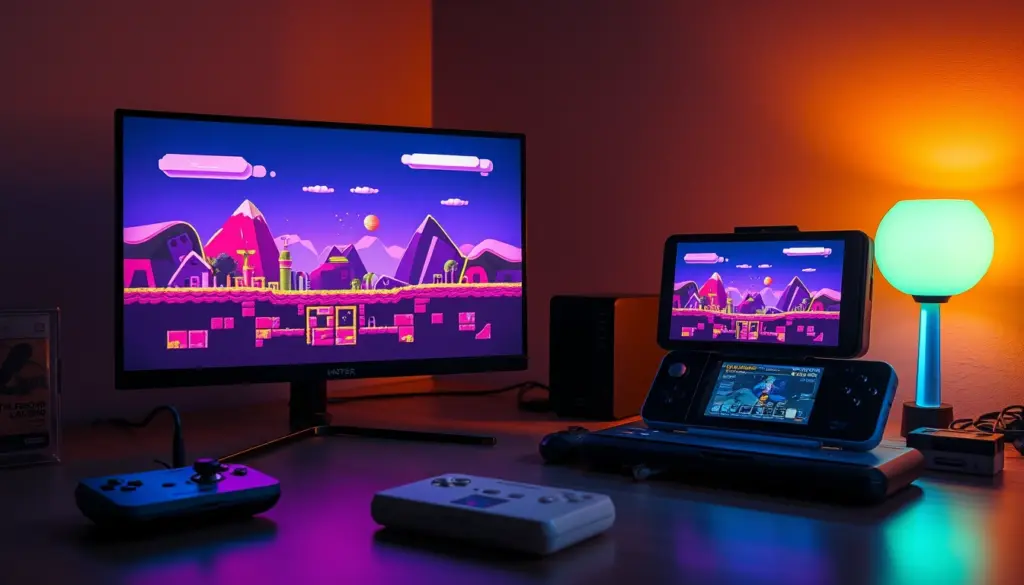
RetroArch is the closest thing retro gaming has to a universal remote. Instead of juggling a dozen separate emulators — each with its own menus, its own controller quirks and its own save format — you install one program that runs NES, SNES, Nintendo 64, Genesis, PlayStation, PSP, Dreamcast and arcade titles behind a single, gamepad-friendly interface. You configure your controller, video output and save behavior once, and those settings apply to every system you emulate. That “configure once, use everywhere” design is exactly why RetroArch has become the default front end for the Steam Deck, retro handhelds and living-room emulation PCs.
The catch is that RetroArch’s power comes with a steeper first-run learning curve than a single-console emulator. Its menu is dense, its terminology (cores, BIOS, playlists, run-ahead) is unfamiliar to newcomers, and the top search results for “RetroArch download” are littered with fake mirrors that bundle adware. This tutorial fixes all of that. It walks through a complete RetroArch setup in 12 steps — roughly 30 minutes of hands-on time — on the current stable release, RetroArch 1.22.2 (published November 20, 2025). By the end you will have a fully working install with 100+ cores available, BIOS files in place, your ROM library scanned into playlists, a mapped controller, working save states and hotkeys, Run-Ahead cutting input lag below original-hardware levels, CRT shaders and RetroAchievements.
Because shattered.io is a security and privacy publication, this guide also does two things the typical walkthrough skips: it explains the legal ground rules for emulation and ROMs up front, and it shows you how to verify you are downloading the real RetroArch instead of a trojaned copy. If you already own a Steam Deck and want a one-click path, our EmuDeck setup guide installs and pre-configures RetroArch for you — but learning how to use RetroArch directly, as we do here, is what lets you fix things when the automated path breaks.
What Is RetroArch? Frontend vs. Emulator, Explained
The single most important concept to grasp before you install anything: RetroArch is not an emulator. It is a frontend — the reference implementation of the libretro API. RetroArch itself handles the parts every emulator needs in common: reading controller input, drawing video, playing audio, managing save files, applying shaders and presenting a menu. The actual job of pretending to be a Super Nintendo or a PlayStation is done by a separate plug-in called a core.
A core is a dynamic library — a .dll on Windows, a .so on Linux and Android, a .dylib on macOS — that emulates exactly one machine. The Snes9x core emulates the SNES; the mGBA core emulates the Game Boy Advance; the Beetle PSX core emulates the original PlayStation. RetroArch can load over 100 libretro cores covering roughly 150 systems, from 1970s consoles up through the PlayStation, PSP, Dreamcast and a huge library of arcade hardware. You download only the cores you need, and each one is a small file, usually well under 20 MB.
This architecture is the whole point. Map your gamepad once and the mapping works in every core. Set your save directory once and every system writes to the same place. Learn one menu and you have learned emulation for forty years of hardware. According to the project’s documentation on Wikipedia, RetroArch is free and open-source software released under the GPLv3 license and maintained by Team Libretro; it ships on Windows, Linux, macOS, Android, iOS, the Steam Deck, the Nintendo Switch and even directly on Steam. That cross-platform reach means the skills in this guide transfer intact from a desktop PC to a handheld to a phone.
Cores, BIOS, ROMs and Playlists: The Four Terms You Need
- Core — the emulator plug-in for one system (e.g. Snes9x for SNES). You download these inside RetroArch.
- BIOS — a firmware file some systems require to boot (PlayStation, Dreamcast, Saturn and others). RetroArch does not include these; you supply them yourself.
- ROM — the game file itself, dumped from a cartridge or disc you own.
- Playlist — an auto-generated, artwork-rich list of your games for a system, created when RetroArch scans your ROM folder.
Is RetroArch Legal? The Emulation and ROM Rules
Emulation itself is legal, and RetroArch is squarely on the right side of the line. The software is GPLv3-licensed open source, it ships zero games, zero BIOS files and zero copyrighted firmware, and it links to none. United States courts have repeatedly held that writing and distributing an emulator — software that reproduces the function of a console without copying its code — is lawful. So installing RetroArch, downloading cores and configuring it, everything in this tutorial, is legal.
The gray area is the content you feed it. The legally clean path is to obtain your BIOS and ROM files by dumping them from hardware, cartridges and discs you personally own, using a flash cart, a disc-dumping tool or a homebrew dumper. Downloading BIOS or ROM files you do not own is copyright infringement in most jurisdictions, full stop — and it is also where the security risk lives, because ROM and BIOS “archive” sites are among the most malware-dense corners of the web. We keep this guide preservation-focused: bring your own dumps.
This matters more in 2026 than it used to. The emulation legal landscape shifted sharply after Nintendo’s action against the Switch emulator Yuzu, which settled for $2.4 million in March 2024 and shut down immediately, taking the 3DS emulator Citra with it; the rival Ryujinx project ceased public development later that year. Current-generation console emulation is now legally fraught, which is why RetroArch’s strength sits in settled territory — everything from the Atari 2600 through the PlayStation, Nintendo 64, Dreamcast and PSP, where the hardware is decades old and the courts have long since ruled. The wider fight over whether players can keep games alive after servers die is playing out in Europe right now; our coverage of the Stop Killing Games petition explains why preservation-minded tools like RetroArch matter to that debate.
Prerequisites: Hardware, OS Versions and Files You Need
RetroArch is famously light on requirements for 8- and 16-bit systems — a decade-old laptop or a $40 mini PC handles NES, SNES and Genesis without breaking a sweat. Demands climb as you emulate newer hardware: PlayStation and Nintendo 64 want a modern integrated GPU, while PSP, Dreamcast and Saturn at upscaled resolutions benefit from a discrete or handheld-class GPU. Here is what you need before Step 1.
| Requirement | Minimum | Recommended | Notes |
|---|---|---|---|
| RetroArch version | 1.22.2 (Nov 2025) | Latest stable | Always re-check the version at install time |
| Windows | Windows 10 64-bit | Windows 11 | 32-bit builds exist but are deprecated |
| Linux | Any modern distro | Flatpak-capable distro / SteamOS | Flatpak is the cleanest install path |
| macOS | macOS 11 Big Sur | Apple Silicon (M1+) | Universal binary; Metal renderer |
| Android | Android 8.0 | Android 11+ | Get it from Google Play or retroarch.com only |
| GPU API | OpenGL 3.x | Vulkan 1.3+ | Vulkan/GLCore needed for slang shaders |
| Storage | 2 GB (app + cores) | Fast SSD or UHS-I microSD | Slow media causes stutter mistaken for bugs |
| Controller | Any USB/Bluetooth pad | Xbox / DualSense / 8BitDo | Most are auto-detected |
You will also want, ready in a folder: the ROM files for games you own, and the BIOS files for any system that needs them (we cover exactly which in Step 6). If you are setting this up on a portable, our comparisons of the Steam Deck vs. ROG Ally and the Legion Go S vs. Steam Deck break down which handhelds have the GPU headroom for demanding PS1, Saturn and Dreamcast upscaling.
Step 1: Download and Install RetroArch Safely
There is exactly one rule for the RetroArch download: get it from an official source. The genuine, safe channels are retroarch.com, the project’s GitHub releases page, your OS package manager, Google Play, or Steam. Everything else — the “retroarch apk” mirrors, the “free download” landing pages, the bundled-installer sites — is a coin flip on whether you get adware or a cryptominer with your emulator. Pick your platform below.
Windows. The cleanest method is the Windows Package Manager, which pulls a signed build:
# Windows 10/11 - install via winget (recommended)
winget install Libretro.RetroArch

# ...or download the .7z / installer directly from retroarch.com
# Unpack to a writable folder such as C:\RetroArch (NOT Program Files)
Installing outside C:\Program Files matters: RetroArch keeps its config, cores and saves in its own folder by default, and Windows’ protected-folder permissions in Program Files can block those writes and produce baffling “cannot save” errors later.
Linux and Steam Deck. Flatpak is the officially recommended route and keeps RetroArch sandboxed:
# Linux desktop and Steam Deck (Desktop Mode)
flatpak install flathub org.libretro.RetroArch

# Launch it
flatpak run org.libretro.RetroArch

# Update RetroArch and every installed flatpak later with:
flatpak update
macOS. Use Homebrew for a hands-off install, or grab the universal .dmg from retroarch.com:
# macOS (Intel or Apple Silicon)
brew install --cask retroarch
Android. Install from the Google Play Store, or download the official APK straight from retroarch.com. Never install a “retroarch apk” from a third-party APK aggregator; that is the number-one vector for malicious RetroArch clones on mobile. The RetroArch Android build is the same feature-complete frontend as the desktop version, which is a large part of why “retroarch android” is such a heavily searched term — a phone plus a Bluetooth pad becomes a pocket multi-system emulator.
The full platform matrix — including the Steam release, Nintendo Switch homebrew and iOS — is documented on retroarch.com and mirrored on Flathub. On the Steam Deck specifically, either the Flatpak above or the Steam-store build works; if you prefer a fully automated multi-emulator setup instead, EmuDeck installs the Flatpak and wires it into Game Mode for you.
| Platform | Recommended install | Config location |
|---|---|---|
| Windows | winget install Libretro.RetroArch | App folder (portable) |
| Linux / Steam Deck | flatpak install flathub org.libretro.RetroArch | ~/.var/app/org.libretro.RetroArch/ |
| macOS | brew install --cask retroarch | ~/Library/Application Support/RetroArch/ |
| Android | Google Play / official APK | /storage/emulated/0/RetroArch/ |
| Steam | Steam store (app 1118310) | Steam userdata |
Step 2: Verify Your Install and Learn the Menu
Launch RetroArch. The first screen can feel intimidating, but it is just a horizontal row of tabs (the “Main Menu,” “Settings,” “Online Updater,” and so on) with a vertical list beneath the selected tab. Navigation is deliberately controller-first: on a keyboard, the arrow keys move, Enter/X confirms, Backspace/Z goes back, and F1 opens the in-game Quick Menu once a game is running. On a gamepad, the d-pad moves, the south button (A/Cross) confirms and the east button (B/Circle) backs out.
RetroArch ships with three main menu “drivers” that change how the interface looks: Ozone (the clean, sidebar-driven default, best for controllers and handhelds), XMB (the PlayStation-style icon menu) and GLUI (a touch-friendly layout for phones). You can switch them under Settings → Drivers → Menu, or set it directly in the config with menu_driver = "ozone". If the menu renders slowly or shows a black screen, change the video driver to Vulkan or GLCore under Settings → Drivers → Video — a mismatched video driver is the most common cause of a first-launch display glitch.
Confirm the install is healthy before going further: open Information → System Information and check that it reports your build (1.22.2 or later) and the correct video driver. A working, up-to-date install here saves you from chasing phantom bugs that are really just an outdated binary.
Step 3: Run the Online Updater First
Before you touch cores or games, run the Online Updater. This one step pulls down the supporting files that make everything else work — and skipping it is behind a huge share of “why won’t my game launch” questions. Open the Online Updater tab and run these entries in order:
- Update Core Info Files — teaches RetroArch which cores exist and what they need. Run this before downloading cores.
- Update Assets — menu icons, fonts and the Ozone/XMB artwork.
- Update Databases — the game fingerprints used to name your ROMs and pull box art during scanning.
- Update Controller Profiles — the autoconfig files that make gamepads plug-and-play.
- Update Cheats and Update Overlays — optional, but grab them now so they are ready.
Think of the Online Updater as the equivalent of running a package-manager refresh: it costs 60 seconds and prevents an entire category of downstream failures. Re-run “Update Core Info Files” and “Update Assets” every few months to stay current.
Step 4: Download Your First Cores with the Core Downloader
Now the fun part. Go to Online Updater → Core Downloader to see the full catalog of 100+ RetroArch cores, alphabetized by system. Select a system, pick a core, and RetroArch downloads and installs it in seconds — no manual file placement, no PATH editing. The core appears immediately in the “Load Core” list and in the playlist scanner.
Most systems have several cores, trading accuracy for speed. The table below lists the well-established, safe defaults for 2025–2026. When two are listed, the first is the higher-accuracy choice and the second is the lighter option for weak hardware or handhelds.
| System | Recommended core(s) | Needs BIOS? |
|---|---|---|
| NES / Famicom | Mesen, FCEUmm, Nestopia UE | No |
| SNES / Super Famicom | Snes9x, bsnes (accuracy) | No |
| Nintendo 64 | Mupen64Plus-Next, ParaLLEl N64 | No |
| Game Boy / Color | Gambatte, SameBoy | No |
| Game Boy Advance | mGBA | Optional |
| Nintendo DS | melonDS, DeSmuME | No |
| Genesis / Mega Drive, SMS, GG | Genesis Plus GX | No |
| Sega Saturn | Beetle Saturn, YabaSanshiro | Yes |
| Sega Dreamcast | Flycast | Yes |
| Sony PlayStation (PS1) | Beetle PSX HW, SwanStation, PCSX ReARMed | Yes |
| Sony PSP | PPSSPP | No |
| PC Engine / TurboGrafx | Beetle PCE | CD only |
| Arcade / Neo Geo | FinalBurn Neo, MAME | Neo Geo: yes |
| Atari 2600 | Stella | No |
A few notes that save beginners hours: for the GBA, choose mGBA, not the older VBA-based cores. For arcade, use FinalBurn Neo (FBNeo), not the discontinued “Final Burn Alpha.” And for PlayStation on a Steam Deck or handheld, SwanStation or PCSX ReARMed run lighter than Beetle PSX HW while still looking great. Only download the cores you will actually use — grabbing all 100+ is pointless clutter.
Step 5: Set Your Directories for BIOS, ROMs and Saves
RetroArch uses a predictable folder layout, and getting your directories right now prevents the two most common headaches: BIOS files RetroArch cannot find, and saves that scatter across your drive. Open Settings → Directory to review and set each path. The most important one is the System/BIOS directory — this is where firmware files must live.
RetroArch/
├── cores/          # downloaded cores (.dll / .so / .dylib)
├── system/         # BIOS + firmware files go HERE
├── saves/          # in-game battery saves (.srm)
├── states/         # save states (.state)
├── playlists/      # generated game lists (.lpl)
├── thumbnails/     # box art, title screens, snaps
├── config/         # per-core and per-game overrides
├── shaders/        # shader presets
├── assets/         # menu UI assets
└── retroarch.cfg   # the global configuration file
Set your System directory to system/, your Save Files and Save States directories to saves/ and states/, and create a separate roms/ folder somewhere convenient (an external SSD or a microSD card is ideal, keeping your library portable). On a Flatpak install the base path is ~/.var/app/org.libretro.RetroArch/config/retroarch/; on Android it is /storage/emulated/0/RetroArch/. After changing directories, go to Settings → Configuration and confirm “Save Configuration on Exit” is enabled so your paths persist.
Step 6: Install BIOS Files the Right Way
Some systems will not boot without their original firmware, and this is the single biggest source of “the game just shows a black screen” problems. RetroArch ships no BIOS files — you place your own, dumped from hardware you own, into the system/ folder. The filenames must be exact, and on Linux they are case-sensitive: scph5501.bin works, SCPH5501.BIN does not. Drop them directly into system/ as loose files (no subfolders), with the one exception noted below.
| System | Required BIOS filename(s) | Placement |
|---|---|---|
| PlayStation (US) | scph5501.bin | system/ |
| PlayStation (JP / EU) | scph5500.bin / scph5502.bin | system/ |
| Dreamcast | dc_boot.bin + dc_flash.bin | system/dc/ |
| Sega Saturn (US/EU) | mpr-17933.bin | system/ |
| Sega Saturn (JP) | sega_101.bin | system/ |
| Sega/Mega CD | bios_CD_U/E/J.bin | system/ |
| PC Engine CD | syscard3.pce | system/ |
| Neo Geo | neogeo.zip | system/ |
| Game Boy Advance | gba_bios.bin (optional) | system/ |
Cartridge systems — NES, SNES, N64, Game Boy, Genesis, Master System and PSP — need no BIOS at all. The authoritative, MD5-checksummed list of every filename lives in the libretro BIOS documentation; check your files against those hashes if a “BIOS not found” error persists. On Linux, verify a checksum from the terminal to be certain a file is the exact expected dump:
# Confirm a BIOS file matches the known-good hash (Linux/macOS)
md5sum system/scph5501.bin
# Compare the output against the value listed in the libretro BIOS docs
Step 7: Add ROMs and Build Your Playlists
With cores and BIOS in place, point RetroArch at your games. Go to Import Content → Scan Directory, navigate to your roms/ folder and select “<Scan This Directory>.” RetroArch reads each file, fingerprints it against the databases you updated in Step 3, and builds a playlist per system, complete with clean game names and box art. When the scan finishes you will see new system icons in the left sidebar — select one to browse your library like a console dashboard.
Disc-based games need a little care. Do not launch the raw .bin of a CD game — launch its .cue sheet, or better, convert discs to the compressed .chd format (RetroArch and most handhelds prefer it; it shrinks PS1/Saturn/Dreamcast images dramatically). Multi-disc games should be joined with a single .m3u playlist file so disc-swapping works from the Quick Menu:
# Example: Final Fantasy VII.m3u  (one .chd per line, in disc order)
Final Fantasy VII (Disc 1).chd
Final Fantasy VII (Disc 2).chd
Final Fantasy VII (Disc 3).chd
A successful launch looks like this: pick a game from a playlist, RetroArch auto-selects the right core (or asks you to choose the first time), and the game boots straight to its title screen. If instead you land back at the menu with a brief error, that is almost always a missing BIOS (revisit Step 6) or the wrong core assigned to the system.
If you want to confirm a clean load, enable verbose logging (Step 2) and watch the log. A healthy core-plus-content load reads like this:
[INFO] RetroArch 1.22.2
[INFO] [Core]: Loading dynamic library "snes9x_libretro.so"
[INFO] [Environ]: SET_PIXEL_FORMAT: RGB565.
[INFO] [Core]: Version of libretro API: 1, Compiled against API: 1
[INFO] [Content]: Loading content file "Super Mario World.sfc".
[INFO] [Core]: Content ready. Running core.
A line reading [ERROR] Failed to load content or [libretro ERROR] Content requires a BIOS, by contrast, points you straight at the culprit — which is exactly why enabling logging is the first thing to do when a game refuses to start.
Step 8: Configure Your Controller
Most modern gamepads — Xbox, DualSense, Switch Pro, 8BitDo — are auto-detected thanks to the controller profiles you updated in Step 3, and simply work when plugged in or paired. RetroArch abstracts every system’s buttons onto a virtual “RetroPad” laid out like a SNES/PS controller, so one mapping drives every core. Check Settings → Input → Port 1 Controls to see the current binds.
If your pad is not recognized, or you want to remap, go to Settings → Input → Port 1 Controls → Set All Controls and press each button as prompted. RetroArch saves this as an autoconfig profile so you only do it once per controller. The key concept to internalize: RetroArch has both a menu input (how you drive the RetroArch UI) and game input (what the emulated console sees) — they are usually the same device but configured separately, which occasionally trips people up when a button works in a game but not in the menu.
Step 9: Set Up Hotkeys and Save States
Hotkeys are what make RetroArch feel effortless: save and load anywhere, fast-forward through grind, screenshot, or exit — all without opening a menu. The clean way to configure them on a controller is to assign a Hotkey Enable button (the Select/Back button is the de-facto standard) under Settings → Input → Hotkeys. Then every hotkey becomes a combo of Hotkey Enable + another button, so you never trigger a save state by accident mid-game. The keyboard defaults work out of the box:
| Action | Keyboard default | Controller combo (with Hotkey Enable) |
|---|---|---|
| Open Quick Menu | F1 | Select + X (configurable) |
| Save State | F2 | Select + R1 |
| Load State | F4 | Select + L1 |
| Fast-forward (hold) | Space | Select + R2 |
| Rewind (hold) | – | Select + L2 |
| Screenshot | F8 | – |
| Pause | P | – |
| Quit RetroArch | Esc | Select + Start |
Save states capture the exact machine state to a slot — far more flexible than a game’s built-in save. You can keep multiple slots and even auto-save on exit and auto-load on launch. Add these to your retroarch.cfg (or set them in Settings → Saving) to resume exactly where you left off every session:
# retroarch.cfg - automatic save-state resume
savestate_auto_save = "true"
savestate_auto_load = "true"
savestate_thumbnail_enable = "true"
One caution: save states are tied to the core version that made them. After a major core update, an old save state may not load — so use the game’s native in-cartridge save for anything you cannot afford to lose, and treat save states as convenience checkpoints.
Step 10: Cut Input Lag with Run-Ahead
This is RetroArch’s killer feature and the one most guides bury. Run-Ahead uses save states internally to run one or more frames of emulation invisibly ahead of what you see, then instantly rolls back and re-simulates the moment you press a button — effectively deleting the input latency that both the original hardware and the emulation layer add. Tuned correctly, an emulated game responds faster than the original console did on a CRT. The official Run-Ahead guide covers the theory; here is the practical setup.
Enable it under Settings → Latency → Run-Ahead to Reduce Latency, then set the number of frames. Start at 1 frame and increase until controls feel instant but before the game starts behaving oddly — most systems need 1–3 frames. If you have CPU headroom, enable the “Second Instance” option, which runs the look-ahead on a separate emulator instance and avoids audio glitches:
# retroarch.cfg - Run-Ahead (start at 1 frame, tune upward)
run_ahead_enabled = "true"
run_ahead_frames = "1"
run_ahead_secondary_instance = "true"
Run-Ahead is CPU-intensive, so it shines on 8- and 16-bit systems where you have cycles to spare, and is best left off for demanding cores like PS1 HW or Saturn on weaker handhelds. Pair it with a companion setting, Settings → Latency → Hard GPU Sync, for an additional latency drop on desktops.
Step 11: Add CRT Shaders and Video Scaling
Pixel-perfect emulation on a modern LCD can look sterile — these games were designed for the soft scanlines and phosphor glow of a CRT. RetroArch’s shader system recreates that look, or simply cleans up scaling. Open the Quick Menu (F1) while a game runs, choose Shaders → Load Shader Preset, and browse the bundled presets. For CRT emulation the standouts are crt-royale (heaviest, gorgeous on a 4K screen), crt-guest-advanced (the modern favorite, highly tunable) and crt-geom (light enough for handhelds).
Note that the high-quality “slang” shaders require the Vulkan or GLCore video driver — if the shader list is empty or presets fail to load, switch your video driver first. Alongside shaders, set your scaling under Settings → Video → Scaling. The most important toggle is Integer Scale, which locks the image to a whole-number multiple of the original resolution to avoid uneven, shimmering pixels. Common aspect-ratio choices:
# retroarch.cfg - crisp scaling defaults
video_driver = "vulkan"
video_scale_integer = "true"
aspect_ratio_index = "22"     # 22 = Core Provided (per-system correct AR)
video_smooth = "false"        # off = sharp pixels; on = bilinear blur
For 4:3 systems, “Core Provided” or “4:3” preserves the intended proportions; avoid stretching retro games to 16:9. Once you find a look you like, save it as a preset from the Shaders menu so it reapplies automatically.
Step 12: Enable RetroAchievements, Rewind and Cheats
The finishing touches. RetroAchievements adds trophy-style achievements to hundreds of retro games via a free account. Create one on the RetroAchievements site, then enable it in Settings → Achievements and enter your credentials — or set them in the config. Because these are network credentials, use a unique password from your password manager, not a reused one; the RetroAchievements guide details the login flow.
# retroarch.cfg - RetroAchievements
cheevos_enable = "true"
cheevos_username = "your_ra_username"
cheevos_hardcore_mode_enable = "false"   # true disables save states/rewind
Leave Hardcore Mode off unless you want the challenge — it disables save states, rewind and cheats to keep achievements “legit.” Rewind, meanwhile, lets you scrub backward through the last several seconds of play (great for tricky platformer jumps); enable it under Settings → Latency → Rewind, noting it costs some performance:
# retroarch.cfg - Rewind
rewind_enable = "true"
rewind_buffer_size = "20"        # megabytes of rewind history
rewind_granularity = "2"
Cheats live in the Quick Menu under Cheats, drawing on the cheat database you updated in Step 3. That completes the core setup — you now have a fully configured, 12-step RetroArch install.
Keeping RetroArch and Your Cores Updated
Emulation moves fast: cores gain accuracy and speed almost weekly, and a stale core is behind many bugs a 30-second update would fix. Keep two things current — the RetroArch app itself and your installed cores — and you sidestep most “it worked yesterday” problems. Update the application through the same channel you installed it from, then refresh cores from inside RetroArch:
# Update the RetroArch app itself
winget upgrade Libretro.RetroArch      # Windows
flatpak update org.libretro.RetroArch  # Linux / Steam Deck
brew upgrade --cask retroarch          # macOS

# Then, INSIDE RetroArch, from the Online Updater tab:
#   Update Installed Cores      <- refreshes every downloaded core at once
#   Update Core Info Files
#   Update Databases / Assets
Update Installed Cores refreshes every core you have downloaded in a single pass — the fastest way to stay current without re-visiting the Core Downloader. One caution repeated from Step 9: a core update can invalidate old save states, so finish anything important (or fall back to the game's in-cartridge save) before a big update. On Android, updates arrive through the Play Store or a fresh official APK; never chase a "newer" build from an unofficial RetroArch download mirror, which is where mobile malware hides.
The Complete RetroArch Config: Your Finished Setup
Here is what a sensible, finished baseline looks like as a single block of retroarch.cfg keys. You do not need to hand-edit the file — every one of these has a menu toggle — but seeing them together is the clearest picture of the "complete working project" this tutorial builds. Merge these into your existing config (never replace the whole file; it has hundreds of keys):
# ---- RetroArch 1.22.2 baseline (merge into retroarch.cfg) ----
# Interface
menu_driver = "ozone"
video_driver = "vulkan"

# Scaling / video
video_scale_integer = "true"
aspect_ratio_index = "22"
video_smooth = "false"

# Latency
run_ahead_enabled = "true"
run_ahead_frames = "1"
run_ahead_secondary_instance = "true"

# Saving
savestate_auto_save = "true"
savestate_auto_load = "true"
savestate_thumbnail_enable = "true"

# Rewind
rewind_enable = "true"
rewind_buffer_size = "20"

# RetroAchievements
cheevos_enable = "true"
cheevos_username = "your_ra_username"
cheevos_hardcore_mode_enable = "false"
With cores downloaded, BIOS verified, playlists scanned, a mapped controller, hotkeys, save states, Run-Ahead, shaders and achievements all live, you have a complete emulation station. Everything from here is refinement.
How to Use RetroArch Day to Day
Setup is a one-time cost; here is the everyday loop once it is done. Learning how to use RetroArch day to day comes down to four moves you will repeat constantly:
- Launch a game. Open the system's playlist from the left sidebar, pick a title, and it boots with the correct core automatically — no file browsing, no core-picking after the first time.
- Open the Quick Menu mid-game. Press F1 (or your Hotkey Enable combo) to save or load a state, swap a disc, apply a shader, toggle cheats or adjust core options, then resume instantly.
- Save and resume. With auto-save-state and auto-load-state enabled (Step 9), simply quitting and relaunching drops you back exactly where you were — on any system, without touching a memory card.
- Close cleanly. Always exit via the Quick Menu's "Close Content" or your quit hotkey rather than force-killing the window, so saves flush to disk.
That is the entire day-to-day workflow across forty years of consoles — one interface, one set of muscle-memory hotkeys. It is the payoff for the setup work, and the reason people run RetroArch instead of a drawer full of separate emulators. On a handheld in Game Mode the loop is identical; the Quick Menu is just a button combo away.
RetroArch vs. Standalone Emulators: When to Use Which
RetroArch is not always the right tool, and honest guidance says so. Its unified interface, shared configuration, Run-Ahead and cross-platform reach are unmatched for building one library across many systems. But for a handful of demanding modern-console emulators, dedicated standalone applications are more mature than their libretro-core equivalents — because the standalone project is where active development happens.
| Use case | Best choice | Why |
|---|---|---|
| NES–PS1, retro handhelds, one library | RetroArch | Unified UI, shared config, Run-Ahead, netplay |
| GameCube / Wii | Standalone Dolphin | More features and settings than the core |
| PS2 | Standalone PCSX2 | Faster-moving development, deeper options |
| PSP | Either (PPSSPP) | Core and standalone are close to parity |
| Switch / current-gen | Neither (legally fraught) | Post-2024 legal landscape; treat as legacy |
A common, pragmatic setup is RetroArch for everything through the PlayStation era, plus standalone Dolphin and PCSX2 for GameCube/Wii and PS2. If you use a Steam Deck, the EmuDeck tool installs exactly that hybrid stack and pushes all of it into Game Mode, using RetroArch as the retro backbone.
6 Common RetroArch Pitfalls (and How to Avoid Them)
Nearly every "RetroArch won't work" report traces back to one of these six mistakes. Knowing them in advance is the difference between a 30-minute setup and a frustrating afternoon.
- Skipping the Online Updater. Without updated core-info and database files, cores misbehave and scans fail to name games. Always run Step 3 first.
- Wrong or misnamed BIOS. A PlayStation BIOS named
SCPH5501.BINinstead ofscph5501.binsilently fails on Linux. Match the exact case and verify the checksum. - Launching a
.bininstead of the.cue/.chd. For CD games, always load the cue sheet or the compressed CHD, never the raw bin track. - The wrong core for a system. Assigning, say, a Genesis core to an SNES ROM produces an instant crash back to menu. Let the scanner pick, or choose deliberately.
- Mismatched arcade ROM sets. FBNeo and MAME demand a ROM set that matches the core's expected version. A "romset version mismatch" is a set problem, not a RetroArch bug.
- An override silently overwriting settings. Per-core and per-game overrides load on top of your global config. If a setting keeps "resetting," an override is winning — check Quick Menu → Overrides.
RetroArch Troubleshooting: 10 Fixes for Common Errors
When something breaks, the first move is always to enable verbose logging under Settings → Logging → Logging Verbosity — the log names the exact missing file or failing core. This table covers the errors you are most likely to hit.
| Symptom | Likely cause | Fix |
|---|---|---|
| Game boots to black screen | Missing/misnamed BIOS | Place exact-named BIOS in system/; verify hash |
| "No cores found" / can't load core | Core-info files not updated | Online Updater → Update Core Info Files, then re-download core |
| Scan finds no games | Databases not updated, or unsupported format | Update Databases; convert discs to .chd |
| Menu is black or very slow | Wrong video driver | Switch to Vulkan or GLCore in Drivers |
| Controller not detected | Missing autoconfig profile | Update Controller Profiles; or Set All Controls manually |
| Shaders list is empty | Using the "gl" driver | Switch video driver to Vulkan/GLCore |
| Save states won't load | Core was updated | Use the matching core version; rely on in-game saves |
| Audio crackles with Run-Ahead | Second instance off / CPU-bound | Enable Second Instance, or lower Run-Ahead frames |
| Settings keep resetting | An override is loading | Delete the per-core/per-game override in Quick Menu |
| Arcade game won't start | Wrong ROM-set version | Match the romset to the FBNeo/MAME core version |
Advanced Tips: Netplay, Cloud Saves and Per-Game Overrides
Once the basics run, RetroArch has depth that rewards exploration. Netplay lets two players share a session over the internet for any core that supports it — host from the Quick Menu, share the room, and RetroArch handles the rollback synchronization. Per-game overrides are the pro move for tuning: load a game, adjust its shader, aspect ratio or core options, then save an override from Quick Menu → Overrides → Save Game Overrides. That game now remembers its own settings while everything else keeps the global defaults.
For a portable setup, keep your roms/, saves/ and states/ folders on a synced drive (Syncthing is the privacy-friendly, self-hosted choice) so progress follows you between a desktop and a handheld. RetroArch also has a built-in cloud-save option under Settings → Saving. And the AI Service feature can translate on-screen Japanese text in real time — invaluable for import-only games. If you are building a dedicated emulation machine, our look at the Steam Machine and the Bazzite vs. SteamOS comparison cover the living-room hardware and OS choices that pair well with a RetroArch-first library.
Security and Safe Downloads: Avoiding Fake RetroArch Sites
This is the section the gaming blogs skip, and it is the one that matters most on a security site. RetroArch's popularity has spawned a cottage industry of imposter download pages that rank in search results and wrap the real installer in adware, browser hijackers or outright malware. The rules are simple and non-negotiable:
- Download only from official channels — retroarch.com, the libretro GitHub, your OS package manager, Google Play or Steam. Bookmark them; never trust a search-ad "RetroArch download" link.
- Prefer sandboxed installs. The Linux/Steam Deck Flatpak runs RetroArch in a confined sandbox, limiting what a compromised build could touch. It is the safest desktop option.
- Verify what you can. The GitHub releases are the canonical binaries; on Android, confirm the package signer matches the official app before sideloading an APK.
- Treat ROM/BIOS sites as hostile. They are the densest malware vector in this hobby. The clean path — dumping from your own hardware — is also the safe path.
- Use a unique password for your RetroAchievements and any netplay accounts, stored in a password manager, since these are the only network-facing credentials RetroArch touches.
RetroArch is offline-first by design: outside of the Online Updater, RetroAchievements and Netplay, it phones home to nothing. That makes it a genuinely privacy-respecting piece of software — provided you got the real thing from the real source.
Frequently Asked Questions
Is RetroArch free?
Yes. RetroArch is completely free and open-source software under the GPLv3 license, with no paid tiers, ads or in-app purchases. It is developed by Team Libretro and funded by donations. The version on Steam is also free.
Does RetroArch come with games or BIOS files?
No. RetroArch ships zero games, ROMs, BIOS or firmware, and links to none. You supply your own game and BIOS files, dumped from hardware and media you own. This is both the legal and the secure approach.
What is the difference between RetroArch and a core?
RetroArch is the frontend — it manages input, video, audio, saves and the menu. A core is the actual emulator for one system (Snes9x for SNES, mGBA for GBA), loaded as a plug-in. RetroArch can load over 100 cores, letting one program emulate roughly 150 systems.
Why won't my game launch in RetroArch?
The two most common causes are a missing or misnamed BIOS file (systems like PS1, Saturn and Dreamcast require one, named exactly and case-correct) and the wrong core assigned to the system. Enable verbose logging to see the precise missing file, then revisit Steps 4 and 6.
Which cores need BIOS files?
PlayStation, Sega Saturn, Sega/Mega CD, Dreamcast, PC Engine CD and Neo Geo require BIOS files. Game Boy Advance can optionally use one. Cartridge systems — NES, SNES, N64, Game Boy, Genesis, Master System and PSP — need no BIOS at all.
Can I run RetroArch on Android and the Steam Deck?
Yes. RetroArch runs on Android 8.0+ (install from Google Play or the official APK on retroarch.com) and on the Steam Deck via the Flathub Flatpak or the Steam store build. The same cores, config keys and workflow apply across every platform — that portability is one of RetroArch's biggest strengths.
Does Run-Ahead really reduce input lag?
Yes, measurably. Run-Ahead simulates emulation frames ahead of display and rolls back on input, removing latency the original hardware and emulation add. At 1–3 frames on 8- and 16-bit systems, games often feel more responsive than the original console did. It is CPU-intensive, so use fewer frames on weaker hardware.
Is using RetroArch legal?
Installing and using RetroArch is legal — emulators are lawful software and RetroArch is open source. What can be illegal is downloading copyrighted ROMs or BIOS files you do not own. Dump your own cartridges, discs and console firmware to stay on the right side of copyright law.
Related Coverage
- EmuDeck on Steam Deck: 20+ Emulators, 12 Steps [2026] — the automated Steam Deck path that installs RetroArch for you.
- Bazzite vs. SteamOS: NVIDIA & 20+ Handhelds [2026] — choosing the Linux gaming OS under your emulation setup.
- SteamOS 3.8 Takes On Windows 11 on 6+ Handhelds [2026] — the handheld OS wave RetroArch runs on.
- Steam Deck vs. ROG Ally: $789 OLED vs $999 120Hz [2026] — picking hardware with GPU headroom for PS1/Saturn upscaling.
- Legion Go S vs. Steam Deck: $599 vs $789 OLED [2026] — another strong emulation handheld compared.
- Stop Killing Games: 1.29M Signatures, No EU Law [2026] — why preservation tools like RetroArch matter.
- All gaming coverage on shattered.io — our full gaming and hardware hub.
This guide reflects RetroArch 1.22.2 and the emulation landscape as of mid-2026. RetroArch updates frequently; always re-check the current stable version on the official GitHub releases page when you install.