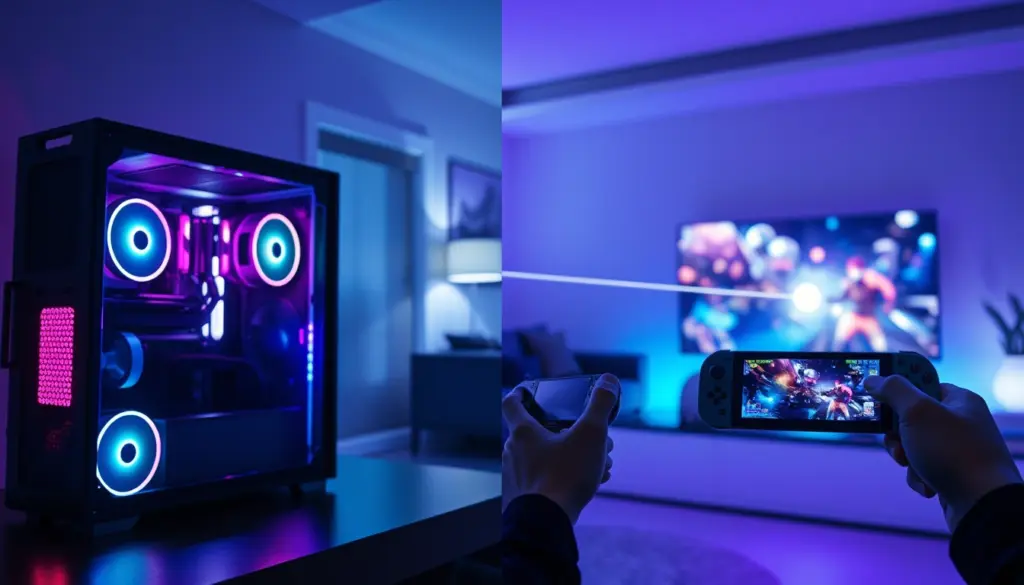
Two names dominate any discussion of streaming PC games to a second screen: Moonlight and Steam Link. Both are free. Both promise to turn a phone, tablet, TV, or handheld into a window onto a gaming PC sitting in another room, or another city. And both have quietly become far more capable in 2026 than most quick comparisons give them credit for.
The catch is that Moonlight and Steam Link solve the same problem from opposite directions. Moonlight is an open-source client that pairs with a self-hosted server called Sunshine, handing back full control over encoding, bitrate, and which games get streamed, Steam library or not. Steam Link is Valve’s built-in remote-play layer: no separate host app to install, no port to forward on the same network, and it works the moment Steam is running.
That architectural split explains almost every other difference in this comparison. It’s why Moonlight reaches Raspberry Pi boards, Xbox consoles, and Chromebooks that Steam Link was never built for, and why Steam Link stays effortless for the one thing most people actually want: streaming a Steam library to a couch, a bedroom TV, or a handheld somewhere else in the house.
This guide compares Moonlight vs Steam Link across specs, supported devices, video quality, real-world latency, setup complexity, cost, and security, including the self-hosting risks neither project spells out on its homepage. By the end, you’ll know which one to install tonight, and when it’s worth running both.
What Is Moonlight?
Moonlight is a free, open-source game-streaming client maintained by the moonlight-stream project on GitHub, where it has collected 17.8k stars under the GPL-3.0 license. The project describes itself as an open-source implementation of NVIDIA’s GameStream protocol, and the current desktop and mobile build, moonlight-qt, has reached version 6.1.0 across 48 tracked releases.
Moonlight is a client only. It doesn’t host anything itself; it just displays and controls a stream coming from a PC running compatible host software. According to Moonlight’s own site, it can stream a full desktop or game at up to 4K resolution with HDR, at up to 120 frames per second, with a manual option to disable V-Sync for the lowest possible latency. Supported video codecs are H.264, HEVC (H.265), and AV1, though AV1 only works if the host is running Sunshine and has an AV1-capable encoder: an Nvidia RTX 40-series card, an Intel Arc GPU, or an AMD RX 7000-series card or newer.
Because Moonlight is open source, it has been ported far beyond the usual Windows, macOS, and Linux trio. The official client list includes Android, iOS, Apple TV, Chromebooks, LG webOS TVs, and Raspberry Pi 4, plus homebrew builds for Nintendo Switch, PlayStation Vita, and Wii U. A community-maintained port also runs on Xbox One and Xbox Series S|X consoles, distributed through the Microsoft Store or via developer-mode sideloading.
The one thing Moonlight cannot do on its own is act as a host. For years, that job belonged to NVIDIA’s GeForce Experience and its built-in GameStream server, but NVIDIA shut GameStream down for good on March 29, 2023, when a mandatory Shield TV update removed it and renamed the Shield’s “NVIDIA Games” app to “GeForce NOW Cloud Gaming,” according to PCWorld’s coverage of the shutdown. GeForce Experience itself is also being phased out in favor of the NVIDIA App, which doesn’t support GameStream at all, per XDA-Developers. In 2026, that leaves exactly one realistic host option for Moonlight: an open-source project called Sunshine.
What Is Steam Link?
Steam Link is Valve’s own remote-play technology, built directly into the Steam client and, increasingly, into standalone apps for almost every screen in the house. Unlike Moonlight, there’s no separate host program to install: any PC signed into Steam can act as a host the moment Remote Play is enabled in Settings.
Steam Link actually refers to two different things people often conflate. The first was a physical $49.99 streaming box Valve launched in November 2015 alongside the original Steam Machines, a small ARM-based device built around a Marvell DE3005-A1 processor with 256MB of RAM and 4GB of storage, running a modified Linux kernel. Valve discontinued the hardware in November 2018, clearing remaining stock for $2.50, and folded its functionality into software instead.
The second, and now the only, Steam Link is the free app. Per its release history, it shipped for Android in May 2018, iOS and tvOS in May 2019, Windows in February 2021, macOS and 64-bit Linux in March 2021, and a Meta Quest VR client in November 2023. As of mid-2026, official platform support spans Android, iOS/iPadOS, tvOS, Apple Vision Pro, Windows, macOS, Linux, Raspberry Pi 3 through 5, Amazon Fire TV, and Meta Quest 2, 3, and Pro headsets, with hand tracking added to the VR client in October 2024. Valve’s Samsung Smart TV app, notably, was discontinued in November 2023.
Steam Link was LAN-only until a March 2019 update called “Steam Link Anywhere” added internet streaming outside the home network. A bigger jump came on November 13, 2024, when an Android update added AV1 codec streaming and HDR support, expanded compatibility to more than 500 additional Android devices, and added network-test-based quality recommendations, according to Android Authority’s report on the release. HDR requires a Windows host and Steam’s “enhanced” 1080p or 4K streaming preset; it isn’t available on the standard quality tier.
Steam Link’s signature feature, Remote Play Together, lets up to four or more friends join a local co-op or split-screen game over the internet even if the game itself has no online multiplayer at all, each person controlling their own view from their own device.
Architecture: Self-Hosted Client vs Built-In Ecosystem
Every other difference between Moonlight and Steam Link in this comparison traces back to one architectural decision each project made early on.
The Host Side
Moonlight was built as a client with no opinion about hosting. That flexibility is the point: it can talk to Sunshine, to an old GeForce Experience or Quadro Experience install if one happens to still be running, or in theory to any server that speaks the GameStream protocol. In practice, in 2026, that means installing Sunshine on the gaming PC, a separate download, a separate configuration step, and, for anyone streaming outside the home network, manual port forwarding or a mesh VPN such as Tailscale or ZeroTier, both of which Moonlight’s own documentation recommends by name.
Steam Link’s host is just Steam. There’s no second application, no separate encoder-configuration screen, and no extra pairing flow beyond confirming the device on a Steam account. Turn on Remote Play in Steam’s settings, and every PC signed into that account becomes a potential host, automatically discoverable by any other device on the same network.
The Client Side
The tradeoff flips on the client side. Steam Link’s client list, while broad, is deliberately curated by Valve: official apps, on official app stores, for official hardware categories. Moonlight’s client is open source and has been compiled for hardware Valve was never going to support, including Raspberry Pi boards, NVIDIA Jetson modules, ARM single-board computers, experimental RISC-V devices, and a community-built Xbox console port. If a device can decode a UDP video stream, someone has probably tried to get Moonlight running on it.
That’s the shape of the whole comparison: Moonlight trades a slightly more involved setup for hosting flexibility and hardware reach, while Steam Link trades hardware reach for a setup that’s ready in under two minutes for anyone who already lives inside the Steam ecosystem.
Moonlight vs Steam Link: Specs at a Glance
Side by side, the two tools look far more similar on paper than their reputations suggest, especially since Steam Link’s November 2024 update closed most of the codec and HDR gap. The table below covers the specs that actually change a buying or setup decision.
| Spec | Moonlight (+ Sunshine) | Steam Link |
|---|---|---|
| Developer | Moonlight open-source community | Valve Corporation |
| License | GPL-3.0, open source | Proprietary, closed source |
| Host software required | Sunshine (separate install) | None – built into Steam |
| Price | Free | Free |
| Max resolution | 4K | 4K |
| Max frame rate | 120 FPS (documented client-wide) | 60 FPS most clients; 120 FPS on Apple Vision Pro only |
| HDR support | Yes | Yes, added November 2024 (Windows host, enhanced preset) |
| Video codecs | H.264, HEVC, AV1 | H.264, HEVC, AV1 (AV1 added November 2024) |
| Audio | 7.1 surround | Stereo/surround, platform-dependent |
| GitHub stars | 17.8k (client), 39.1k (Sunshine host) | N/A – closed source |
| Streams non-Steam software | Yes, entire host desktop by default | Yes, via “non-Steam game” shortcut |
| Native VR client | No | Yes – Meta Quest 2/3/Pro, Apple Vision Pro |
| Remote/internet play | Port forwarding, IPv6, ZeroTier, or Tailscale | Built-in relay via Steam Link Anywhere |
| Controller support | Up to 16 gamepads, force feedback | Steam Input, multi-controller via Remote Play Together |
| Latest version | Client v6.1.0 (Sep 2024); Sunshine host v2026.516.143833 (May 2026) | Continuously updated; no public version number |
Supported Platforms and Devices
Platform breadth is where the two projects diverge the most visibly. Moonlight wins on raw device count and support for hardware Valve has no commercial reason to target; Steam Link wins on VR and official smart-TV or set-top coverage.
| Platform | Moonlight | Steam Link |
|---|---|---|
| Windows | Yes | Yes |
| macOS | Yes | Yes |
| Linux (x86-64) | Yes | Yes, since March 2021 |
| Raspberry Pi | Yes – Pi 4 official, community Pi 5 builds | Yes – Pi 3, 3+, 4, 5 |
| Android | Yes | Yes |
| iOS / iPadOS | Yes | Yes |
| Apple TV / tvOS | Yes | Yes |
| Apple Vision Pro | No | Yes – native visionOS client, 4K at 120 FPS |
| Meta Quest (VR) | No native client | Yes – Quest 2, 3, Pro; hand tracking since Oct 2024 |
| Xbox consoles | Yes – community port | No official app |
| Nintendo Switch | Yes – homebrew | No |
| Chromebooks / ChromeOS | Yes | No official app |
| LG webOS Smart TVs | Yes | No – Samsung app discontinued Nov 2023 |
| Amazon Fire TV | Community sideload | Yes, official |
| NVIDIA Jetson / ARM SBCs | Yes | No |
Households already invested in a Linux gaming setup like Bazzite or SteamOS get support from both tools on the host side, but Moonlight’s client reach is the difference-maker for anyone with an odd mix of hardware sitting around the house.
Video Quality: Codecs, HDR, and Bitrate
Both platforms converged on nearly identical codec support faster than most write-ups give them credit for. As recently as 2023, Steam Link was capped at H.264 with no HDR, a real gap next to Moonlight, which had already supported HEVC and manual bitrate control for years. That gap closed on November 13, 2024, when Valve shipped the Android update adding AV1 streaming and HDR, along with compatibility for more than 500 additional Android devices and automatic quality recommendations based on a network test. HDR on Steam Link still requires a Windows host and the “enhanced” 1080p or 4K streaming preset; it isn’t available on the standard quality tier.
Moonlight’s codec support hasn’t changed as dramatically because it didn’t need to. The client has supported H.264, HEVC, and AV1 since AV1 encoding hardware became available in consumer GPUs, and the project’s own site advertises “4K with HDR” and up to 120 FPS streaming as headline features, with an explicit V-Sync-disable option for players chasing every last millisecond. The catch is that AV1 streaming on Moonlight only works when the host runs Sunshine, not the older and now-dead GameStream, and only on GPUs with AV1 hardware encoders: Nvidia’s RTX 40-series or newer, Intel Arc, or AMD’s RX 7000-series or newer.
In practice, both tools now offer the same three-codec ladder: H.264 for compatibility and low-end hardware, HEVC as the sensible middle ground, and AV1 for the best quality per bit on supported GPUs. Both also cap out at 4K resolution for the overwhelming majority of client devices. The frame-rate ceiling is the one real gap left standing. Moonlight documents 120 FPS streaming across its supported clients broadly, while Steam Link’s 120 FPS mode is currently exclusive to the native Apple Vision Pro app; every other Steam Link client, including Windows, Android, and Fire TV, tops out at 60 FPS even when the rest of the pipeline, 4K, HDR, and AV1, matches Moonlight feature for feature.
Performance and Latency
Precise latency numbers are the most misused statistic in this comparison. Plenty of sites publish exact millisecond figures with no disclosed test rig, network topology, or methodology behind them, which makes those numbers close to meaningless. What’s actually verifiable is the architecture both tools use to keep latency down, plus a handful of hands-on reports from outlets that do explain their setup.
Both Moonlight/Sunshine and Steam Link use hardware-accelerated video encoding over a low-latency UDP transport rather than a general-purpose remote-desktop protocol like RDP or VNC, the same basic approach NVIDIA GameStream pioneered and that Valve later adapted into what its own Steam Link store listing calls a “custom low-latency network protocol.” Sunshine, Moonlight’s modern host, supports hardware encoding through NVENC on Nvidia, AMF on AMD, Quick Sync on Intel, and VideoToolbox on Apple Silicon, per its GitHub documentation, which keeps encode time off the CPU on virtually any host built in the last several years.
Where hands-on testing exists, it favors Moonlight and Sunshine narrowly on local networks, and shows both tools are usable, if noticeably more compressed, over the open internet. XDA-Developers, comparing Sunshine plus Moonlight against the paid tool Parsec on a local network, reported that “Parsec had slight microstutter and barely noticeable input delay, and the Sunshine + Moonlight setup was slightly better.” The same article cites a community test streaming from a PC to a Poco F3 Android phone over 5GHz Wi-Fi using Moonlight at H.265, 3 Mbps, 1080p: roughly 24ms of latency on average with occasional spikes to 60ms, and a 0.24ms decode time on the phone itself, respectable for a phone-to-PC hop, but a reminder that wireless clients add real, measurable latency compared to a wired connection.
Steam Link doesn’t publish independent decode-time or jitter figures, but Valve is explicit that quality depends on the network: the company’s own guidance is that 4K at 60 FPS is realistic with a powerful host, a wired network, and a capable client device on a gigabit connection, the same conditions any streaming protocol, Moonlight included, needs to hit its best case.
The practical takeaway: on a wired LAN with a competent host GPU, both tools deliver latency low enough that most single-player and even many competitive games feel responsive. The gap that actually matters is elsewhere, in wireless client quality, host GPU age, and network conditions, not in a specific brand of streaming software.
Setting Up Each One
Setup time is where the architecture gap becomes very real for anyone doing this for the first time.
Setting Up Moonlight + Sunshine
- Download and install Sunshine on the gaming PC from LizardByte’s GitHub releases page – available for Windows, Linux, macOS, and FreeBSD.
- Sunshine installs as a background service and opens a local web dashboard for configuration, encoder selection, and adding applications to stream.
- Install the Moonlight client on the target device: desktop, phone, Raspberry Pi, or Xbox.
- Launch Moonlight; it should auto-discover the host PC on the same network. Select it to begin pairing.
- Enter the PIN Moonlight displays into Sunshine’s web dashboard to complete pairing.
- For streaming outside the home network, forward the required ports on the router, or, for a safer option covered below, connect both devices to a Tailscale or ZeroTier network instead.
The ports Sunshine and Moonlight need open on a local firewall, per the official Moonlight setup guide:
TCP: 47984, 47989, 48010
UDP: 47998, 47999, 48000, 48002, 48010
Setting Up Steam Link
- On the host PC, open Steam, go to Settings, then Remote Play, and confirm “Enable Remote Play” is checked.
- Install the Steam Link app on the client device from its respective app store: Google Play, Apple App Store, Microsoft Store, or the Fire TV/Android TV store.
- Open Steam Link and sign in with the same Steam account used on the host PC.
- The app auto-detects the host PC on the local network. Select it and confirm the on-screen pairing code.
- Streaming starts immediately, no separate host application and no manual port configuration for LAN play.
- For play outside the home network, Steam Link Anywhere handles the connection automatically once Remote Play is enabled; no manual port forwarding is required.
The difference in step count looks small on paper, but the practical gap is bigger. Sunshine is a second piece of software with its own update cycle and encoder settings, and XDA-Developers describes its setup as requiring “port forwarding and firewall rules” knowledge for anyone streaming beyond the LAN, unless it’s routed around with a mesh VPN. Steam Link’s setup cost is paid once, by Valve, inside Steam itself.
What It Actually Costs
Both Moonlight and Steam Link are entirely free, with no premium tier, subscription, or paywalled feature, a genuine rarity in 2026’s game-streaming market. The table below puts that in context against the nearest paid self-hosted alternative and against cloud-rental services that supply the GPU instead of streaming one you already own.
| Tool | Cost | What you’re paying for |
|---|---|---|
| Moonlight (client) | $0 | Open source, GPL-3.0, no tiers |
| Sunshine (host) | $0 | Open source, GPL-3.0, no tiers |
| Steam Link (client + host) | $0 | Built into Steam, no tiers |
| Parsec (comparable self-hosted alternative) | $0 free tier / $8.33–$9.99 per month Warp | Paid tier adds multi-monitor streaming and 4:4:4 color encoding |
| GeForce Now (cloud rental, for contrast) | $9.99–$19.99 per month | Rents a remote GPU instead of streaming your own PC |
| Xbox Game Pass Ultimate (cloud rental, for contrast) | $22.99 per month | Cloud access to a game library, not your own library |
The real cost of either Moonlight or Steam Link is hardware most enthusiasts already own: a gaming PC to act as the host, and whatever client device is on the receiving end. Compare that to the market’s other self-hosted option, Parsec, which reserves 4:4:4 color encoding and multi-monitor streaming for its $8.33-to-$9.99-a-month Warp plan, or to cloud-rental services like GeForce Now and Xbox Cloud Gaming, which charge $9.99 to $22.99 a month specifically because they supply the GPU, not just the software. If a capable gaming PC is already in the house, Moonlight and Steam Link both turn hardware that’s already paid for into a personal cloud-gaming service for the cost of the electricity to run it.
The nearest thing to a hidden cost on either side is network hardware. Sunshine and Moonlight’s own setup guide both recommend a 5GHz Wi-Fi 5 or Wi-Fi 6 router and a wired Ethernet connection from the host PC for best results, not a requirement unique to either tool, but worth budgeting for if the current router is aging. A dedicated low-cost client, such as a Raspberry Pi running Moonlight, is the closest either ecosystem comes to a hardware purchase, and even that is optional if an existing phone, tablet, or laptop is enough.
Security and Remote Access
This is the section most round-ups skip, and it’s the one that matters most once either tool leaves the home network.
Both Moonlight/Sunshine and Steam Link default to a PIN-based pairing model: the first time a new client connects, the host displays or requires a short code, and every device that’s ever paired stays trusted until it’s manually removed. That’s a reasonable baseline, but the two tools diverge sharply on what happens next, when someone wants to play from outside the house.
Steam Link Anywhere handles remote connections through Valve’s own infrastructure, brokering the connection without requiring the host’s home router to expose any ports directly to the internet. That’s a meaningfully smaller attack surface for a typical household: Valve, not the person setting up the router, carries the burden of securing the relay.
Sunshine offers no equivalent built-in relay. Moonlight’s own documentation lists three options for remote play: forward the required ports directly on the router, use IPv6, or join both host and client to a mesh VPN like ZeroTier or Tailscale. Port forwarding is also the riskiest of the three. It opens a listening service directly to the public internet, and while Sunshine’s PIN pairing protects new connections, it doesn’t eliminate the exposure of running server software on an internet-facing port around the clock.
The safer route, and the one Moonlight’s own site recommends by name, is a mesh VPN. Tailscale in particular builds an encrypted, private network between the host PC and every client device without opening a single inbound port on the router; streaming traffic never touches the open internet at all. It’s the same tradeoff covered in our Tailscale vs WireGuard comparison: Tailscale trades a small amount of raw throughput for zero-configuration security, exactly the profile a home game-streaming rig wants. Anyone setting up Sunshine for use outside the home network should treat a mesh VPN as the default, not an advanced option, and skip the port-forwarding step entirely if there’s a choice.
One more practical note: Sunshine’s web configuration dashboard is itself a service worth locking down. It ships with a username and password set during first-run setup, and that dashboard should never be exposed to the internet directly. Access it only over the local network or through the same VPN tunnel used for streaming.
Real-World Use Cases
Both tools show their real differences once they’re mapped onto specific households and hardware, rather than compared feature by feature. Six setups come up repeatedly among enthusiasts:
- A Steam Deck as a second screen for a full gaming PC. A common setup uses Moonlight, available via the Steam Deck’s Discover store in Desktop Mode, to stream an entire high-end gaming PC’s library to the Deck’s screen over a home network, sidestepping the Deck’s own hardware limits for AAA titles it couldn’t otherwise run natively. The same trick works for anyone comparing a Steam Deck against a Windows handheld like the ROG Ally as a streaming client rather than a standalone gaming PC.
- Reviving an old Xbox as a streaming box. With the community-built Moonlight-Xbox port installed via the Microsoft Store or developer mode, an Xbox One or Series S|X becomes a Sunshine client, letting a big-screen console handle input and display while a separate PC does the actual rendering.
- Couch co-op over the internet with Remote Play Together. Steam Link’s signature feature lets up to four or more players join a local split-screen or couch co-op game from separate homes, each person seeing their own view, useful for games that never shipped with online multiplayer at all.
- A free VR desktop for Meta Quest or Vision Pro owners. Steam Link’s native clients for Meta Quest 2, 3, and Pro and Apple Vision Pro turn a VR headset into a giant virtual monitor for the host PC’s desktop or Steam library, with the Vision Pro app the only client on either platform currently rated for 4K at 120 FPS.
- Streaming non-Steam games and emulators. Both tools can go beyond their default libraries. Steam Link streams anything added to Steam as a “non-Steam game” shortcut, including emulators, launchers like Epic or GOG Galaxy, or general desktop apps, while Moonlight, paired with Sunshine, streams the host’s entire desktop by default, with no Steam account or library required at all.
- A cheap Raspberry Pi client for a spare TV. Because Moonlight is open source, it runs natively on Raspberry Pi 4 and 5 boards, letting a spare bedroom or basement TV become a full streaming client for a fraction of the cost of a dedicated gaming PC or console.
Migration Guide: Moving Between Moonlight and Steam Link
For most households, this isn’t strictly an either-or decision. Plenty of gaming PCs run Sunshine and keep Remote Play enabled in Steam at the same time, since neither uses resources the other needs by default. But switching a client device from one to the other is straightforward in both directions.
Switching from Steam Link to Moonlight + Sunshine
Typical reasons: wanting AV1 without a Windows-host requirement, needing 120 FPS beyond the Vision Pro app, streaming non-Steam software without a shortcut workaround, or wanting a client on hardware Steam Link doesn’t officially support, such as a Raspberry Pi, an Xbox, a Chromebook, or an LG TV.
- Install Sunshine on the host PC and complete its first-run setup: username, password, and encoder selection.
- Confirm the host’s firewall allows Sunshine’s ports on the local network at minimum.
- Install Moonlight on the client device that previously ran Steam Link.
- Pair Moonlight with the new Sunshine host using the on-screen PIN.
- If the client previously relied on Steam Link Anywhere for remote access, replace it with a mesh VPN such as Tailscale or ZeroTier rather than forwarding ports directly. Steam Link’s relay model doesn’t carry over, so this step isn’t optional for remote use.
- Steam Link and Sunshine can coexist on the same PC; there’s no need to uninstall Steam Link unless its background process competes for encoder resources during simultaneous use.
Switching from Moonlight + Sunshine to Steam Link
Typical reasons: wanting a zero-maintenance setup, adding a VR headset client, using Remote Play Together for couch co-op, or simplifying a household where not everyone is comfortable managing a second application.
- Confirm Remote Play is enabled in Steam’s Settings on the host PC; most installs already have it on by default.
- Install the Steam Link app on the client device.
- Sign in with the same Steam account used on the host.
- Pair using the on-screen code. Steam Link Anywhere handles remote access automatically without router configuration.
- Sunshine can remain installed and idle for any devices still using Moonlight; the two setups don’t conflict as long as both aren’t actively streaming the same GPU encoder session at once.
Moonlight Pros and Cons
- Pro: Free and fully open source under GPL-3.0
- Pro: Widest client hardware support of the two: Raspberry Pi, Xbox via a community port, Chromebooks, LG TVs, and Jetson boards
- Pro: Streams the entire host desktop, not just a Steam library
- Pro: 120 FPS streaming with manual bitrate and V-Sync control for latency tuning
- Pro: No Steam account required on either end
- Con: Requires installing and maintaining a separate host app, Sunshine
- Con: No official host relay; remote access means port forwarding or a mesh VPN
- Con: No native VR client
- Con: GameStream, its original host protocol, is dead; Sunshine is effectively mandatory now
Steam Link Pros and Cons
- Pro: Zero-install host; works the moment Remote Play is enabled in Steam
- Pro: Steam Link Anywhere handles remote play without router configuration
- Pro: The only official VR client of the two, covering Meta Quest 2/3/Pro and Apple Vision Pro at up to 4K120
- Pro: Remote Play Together enables couch co-op with remote friends
- Pro: Regularly updated by Valve directly; AV1 and HDR added November 2024
- Con: 60 FPS ceiling on every client except the Vision Pro app
- Con: Closed source, so there’s no community audit of the streaming protocol
- Con: No equivalent to Moonlight’s flexibility for oddball hardware beyond what Valve officially ships
- Con: HDR requires a Windows host and the “enhanced” quality preset specifically
Who Should Choose Which
- Steam Deck or handheld PC owners who want their whole library, not just Steam: choose Moonlight + Sunshine. It streams the entire host desktop, Epic, GOG, emulators, and Steam alike, rather than only what’s added as a Steam shortcut.
- Households that just want couch co-op with remote friends: choose Steam Link. Remote Play Together is unmatched for turning a local split-screen game into an internet multiplayer session in minutes.
- VR owners with a Meta Quest or Apple Vision Pro: choose Steam Link. It’s the only officially supported VR desktop-streaming client of the two, and the only one rated for 4K120 on Vision Pro hardware.
- Anyone building a budget client from a Raspberry Pi, an old laptop, or a Chromebook: choose Moonlight. Its open client list covers hardware Valve never targeted.
- Privacy- and security-conscious self-hosters who already run a mesh VPN: choose Moonlight + Sunshine. It rewards exactly the kind of network setup this site recommends, avoiding both port-forwarding exposure and a third-party relay for game traffic.
- Non-technical households that don’t want to manage a second application: choose Steam Link. The “it just works” setup cost is close to zero.
- Streaming to an Xbox console sitting under the TV: choose Moonlight, via the community Xbox port. Steam Link has no official Xbox client at all.
The Verdict
Moonlight and Steam Link aren’t really competing for the same use case as much as their shared “free game streaming” label suggests. Steam Link is the better default for anyone who lives inside the Steam ecosystem, wants VR support, or would rather not think about ports, encoders, or a second application ever again, and Valve’s November 2024 AV1 and HDR update proved it’s still actively closing the gap with Moonlight rather than coasting on being good enough.
Moonlight, paired with Sunshine, is the better choice the moment a use case falls outside what Valve built Steam Link for: streaming a non-Steam library, reaching a Raspberry Pi or Xbox console, hitting 120 FPS on more than the one supported VR headset model, or wanting full control over bitrate, encoder, and network path, including running the whole setup over a private mesh VPN instead of trusting a company’s relay.
Neither one costs a cent, which removes the usual deciding factor in software comparisons and leaves the decision entirely about architecture: a host that’s installed and controlled, or a host that’s already running because Steam is already open. Households with a single gaming PC and a single Steam library will likely never notice Moonlight exists. Households running Linux hosts, emulation boxes, mixed game-store libraries, or a menagerie of client hardware will outgrow Steam Link’s curated device list quickly, and that’s exactly when Sunshine’s extra ten minutes of setup starts paying for itself.
The most common setup among enthusiasts, based on the hands-on comparisons cited throughout this guide, isn’t actually a choice between the two. It’s both, installed side by side, with Steam Link covering the effortless cases and Moonlight covering everything Valve’s client list doesn’t reach.
Frequently Asked Questions
Is Moonlight or Steam Link better for latency?
Both are close enough on a wired local network that most players won’t notice a difference. Hands-on testing from XDA-Developers found Sunshine plus Moonlight “slightly better” than the paid tool Parsec for microstutter and input delay on a local network; Valve doesn’t publish independent latency figures for Steam Link but recommends the same wired, gigabit setup for its best results. The bigger latency factor in practice is the client device and network type, not the brand of software.
Do I need a powerful GPU to host either one?
Both benefit from a GPU with a hardware video encoder, NVENC on Nvidia, AMF on AMD, or Quick Sync on Intel, which Sunshine explicitly supports and which any Steam-compatible gaming PC from the last several years already has. AV1 streaming specifically requires a newer GPU, an RTX 40-series, Intel Arc, or AMD RX 7000-series card or newer, on both platforms.
Can Moonlight stream games that aren’t on Steam?
Yes. Moonlight streams the host PC’s entire desktop by default, so any launcher, emulator, or standalone game works without extra configuration. Steam Link can also stream non-Steam software, but it requires first adding it to the Steam library as a “non-Steam game” shortcut.
Is Steam Link safe to use over the internet?
Steam Link Anywhere routes remote connections through Valve’s own infrastructure rather than requiring an open port on the home router, which is a smaller attack surface than the alternative. Sunshine has no equivalent built-in relay, so remote Moonlight use should go through a mesh VPN like Tailscale rather than direct port forwarding.
Does either one work with a Steam Deck?
Yes, both do, in different roles. A Steam Deck can run the Moonlight client, via Desktop Mode, to stream a separate, more powerful gaming PC’s library, and it can also act as a Steam Link host or client since it runs the Steam client natively.
What happened to NVIDIA GameStream?
NVIDIA shut GameStream down for good on March 29, 2023, and its replacement app, the NVIDIA App, doesn’t support it at all. Moonlight still lists GeForce Experience and Quadro Experience as legacy host options, but Sunshine is the only host with active development in 2026.
Which one supports VR headsets?
Only Steam Link, officially. It has native clients for Meta Quest 2, 3, and Pro, with hand tracking added in October 2024, and a native visionOS app for Apple Vision Pro that supports 4K at 120 FPS. Moonlight has no official VR client.
Can Moonlight and Steam Link run on the same PC?
Yes. They don’t conflict as background services, and many enthusiasts run both: Steam Link for quick, in-ecosystem streaming, and Sunshine plus Moonlight for everything else, including non-Steam libraries and out-of-network hardware like Raspberry Pi clients or Xbox consoles.
Related Coverage
- GeForce Now vs Xbox Cloud Gaming: 4K vs 1440p [2026]
- Tailscale vs WireGuard: Free vs $8/User [2026]
- Bazzite vs SteamOS: NVIDIA & 20+ Handhelds [2026]
- Steam Deck vs ROG Ally: $789 OLED vs $999 120Hz [2026]
- Quest 3 vs Quest 3S: $599 vs $349, 30% Sharper [2026]
- Steam Machine Hits $1,049: 6x Steam Deck Power [2026]
- SteamOS 3.8 Takes On Windows 11 on 6+ Handhelds [2026]