
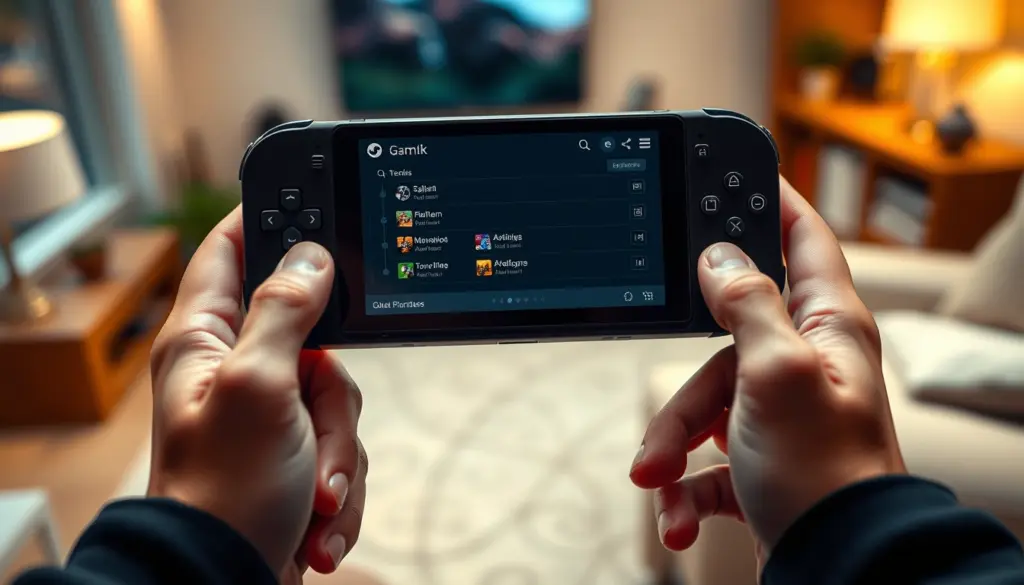
Decky Loader is the plugin system that turns a stock Steam Deck into a fully customizable handheld, adding a browsable store of community plugins directly into the Quick Access Menu. It is free, open source, and runs entirely in user space, which is why it has become the default first install for most new Steam Deck owners. As of this guide, the official Decky Store lists 110 live plugins that have collectively been downloaded more than 15 million times, and the underlying loader itself has passed 7,000 stars on GitHub. This tutorial walks through every step of installing Decky Loader safely, auditing which plugins request elevated permissions, and fixing the errors that trip up first-time installs, in about 30 minutes.
Most existing guides stop at “download the installer and browse the store.” This one goes further: every download and permission figure below comes from querying the Decky Store’s own public API directly rather than repeating a marketing page, and a dedicated step walks through auditing exactly which of your installed plugins are running with root-level system access before you decide to trust them long-term.
What Is Decky Loader, and Why Do Steam Deck Owners Use It?
Decky Loader is a homebrew plugin loader built specifically for Valve’s Steam Deck. It was created by the SteamDeckHomebrew community project and is licensed under GPL-2.0, with the full source published at github.com/SteamDeckHomebrew/decky-loader. The project has earned 7,096 stars on GitHub, and its most recent stable release, version 3.2.6, shipped on June 24, 2026.
Functionally, Decky Loader works by injecting a React-based user interface into Steam’s own Big Picture-style UI and running a lightweight backend service alongside it. It does not patch, replace, or modify any of Steam’s own files, which is a big part of why the homebrew community considers it low-risk compared to flashing custom firmware or replacing the Deck’s bootloader. Once installed, a new tab appears in the Quick Access Menu, the panel you open with the three-dot button on the right side of the Deck. That tab is Decky’s home: a settings page, a list of your installed plugins, and a storefront button that opens the Decky Plugin Store.
The reason Decky Loader specifically became the standard, rather than any of the several competing homebrew tools that existed in the Deck’s early days, is the plugin store model. Instead of manually copying files over SSH or sideloading unsigned packages, users browse a curated, reviewed list of plugins and install them with a single button press, similar to a mobile app store. Every plugin in that store has been reviewed and approved by a member of the Decky development staff before it goes live, which is also the security boundary this guide spends real time on later.
The project is older than most owners assume. The decky-loader repository was first created in March 2022, just months after the Steam Deck itself launched, and has since grown to 249 forks and contributions merged from more than 75 different developers. That long a track record, maintained in the open on GitHub’s public contributor graph, is part of why the homebrew community treats it as the trusted default rather than just one option among many.
Prerequisites: What You Need Before You Start
Decky Loader has a short prerequisite list, but skipping any one of these items is the single most common reason a first install fails. Confirm each of these before you touch the installer.
| Requirement | Details |
|---|---|
| Device | Valve Steam Deck (LCD or OLED). Officially supported only on stock SteamOS. |
| Operating system | SteamOS 3.x, current stable branch is 3.8 (Arch Linux base, kernel 6.16, KDE Plasma 6, Wayland by default) |
| Decky Loader version | v3.2.6 (latest stable, released June 24, 2026) |
| Installer version | decky-installer v1.9.0 (install_release.sh, install_prerelease.sh, uninstall.sh) |
| Free ports | 8080 and 1337 must be unused; Syncthing is a known conflict on 8080 |
| Storage | A few hundred MB free for the loader and your first plugins |
| Network | Working Wi-Fi (needed to download the installer and reach the plugin store) |
| Access mode | Desktop Mode with an admin/sudo password set (the installer can set a temporary one for you) |
Note the installer version separately from the loader version: decky-loader (the plugin runtime you actually use every day) and decky-installer (the one-time setup tool) are two different GitHub repositories maintained by the same team, and they update on very different schedules. It is normal for the installer to look older than the loader, since its job (download files, register a systemd service) rarely needs to change.
Is Decky Loader Official? Understanding Valve’s Position
Decky Loader is not a Valve product. It is a third-party, community-built tool, though Valve has tolerated and effectively endorsed it by never blocking it and by keeping Desktop Mode fully open on every Steam Deck. The project’s own documentation is explicit about scope: Decky Loader “is only intended for use with the installation of SteamOS provided on Steam Deck,” and third-party SteamOS derivatives such as HoloISO are called out by name as not officially supported.
In practice this is narrower than how most owners actually use it. The same underlying installer, wrapped in a distribution-specific command, runs cleanly on Bazzite, a Fedora-based distribution that replicates SteamOS’s Gaming Mode on non-Valve handhelds, and that path is covered later in this guide. The distinction that matters is warranty and support, not legality: installing homebrew software through Desktop Mode does not trip any hardware fuse or modify a bootloader, and Valve support staff have historically continued honoring hardware warranty claims from users who disclosed running Decky Loader. There is no DRM circumvention involved, since nothing about the loader touches Steam’s own game files or anti-cheat systems, which keeps it clearly outside the kind of legal gray area that surrounds console emulator BIOS files or console jailbreaks.
The practical safety record backs this up. Decky Loader runs in user space, can be fully removed in under a minute, and does not require unlocking any part of the Deck’s firmware. That is a meaningfully different risk profile than, say, installing a custom BIOS on an Android handheld, and it is the main reason security-conscious users are comfortable running it despite the “unofficial” label.
Step 1: Update SteamOS and Confirm Your System Is Ready
Before installing anything, update SteamOS to the current stable branch. From Gaming Mode, open the Steam button menu, go to Settings, then System, and check for updates. As of this guide the stable branch is SteamOS 3.8, which brought a move to Wayland by default, an upgrade to KDE Plasma 6 in Desktop Mode, and a newer Arch Linux base with kernel 6.16. Installing Decky Loader on a badly out-of-date SteamOS build is one of the more common causes of the installer silently failing partway through, since some of its dependencies assume a reasonably current desktop environment.
While you are in Settings, confirm your System Update Channel is set to Stable unless you specifically intend to run the Decky prerelease branch. The prerelease channel exists and is fully supported by the installer, but it trades stability for early access to in-development features, and it is not the right starting point for a first install.
Step 2: Switch Your Steam Deck to Desktop Mode
Press and hold the power button until the power menu appears, then select Switch to Desktop. This drops you into the KDE Plasma desktop environment that runs underneath Gaming Mode. Every part of the Decky Loader install has to happen here; the graphical installer will not run from inside Gaming Mode.
If you have never used Desktop Mode before, open the Discover app (the blue shopping-bag icon) at least once and confirm it can see the software catalog. You will want a working file manager and terminal for the steps ahead, both of which ship with SteamOS by default.
Step 3: Check for Port Conflicts on 8080 and 1337
Decky Loader’s backend needs ports 8080 and 1337 free. This is the single most common installer failure this guide’s own troubleshooting section covers, almost always because Syncthing or another self-hosted sync tool is already bound to 8080. Open a terminal in Desktop Mode (Konsole, from the taskbar) and check both ports before you install anything:
ss -tulnp | grep -E ':8080|:1337'If that command returns nothing, both ports are free and you can move on. If it returns a line referencing syncthing, another Decky-related process, or anything unexpected, stop and close that application first (or reconfigure it to use a different port) before continuing. Trying to install over an already-bound port produces a partial install that looks like it succeeded in the terminal but never actually shows up in the Quick Access Menu.
Step 4: Download the Decky Loader Installer
You have two supported paths from here: a graphical installer or a one-line command. Both call the same decky-installer project and end up configuring the same systemd service, so pick whichever you are more comfortable with.
For the graphical route, open a browser in Desktop Mode and go to decky.xyz, the project’s official site, then use the Download link to grab the installer package built for Steam Deck. Be careful with search results here: decky.xyz is the only official domain. Lookalike domains such as decky.net and deckyloader.org are not affiliated with the SteamDeckHomebrew project, despite ranking for the same searches, and should not be used to download the installer.
Step 5: Run the Graphical Installer
Once downloaded, locate the file in your Downloads folder, right-click it, and run it (or double-click, depending on your file manager’s configuration for .desktop files). If SteamOS has not had an admin password set yet, the installer will offer to generate a temporary one for you rather than failing outright.
The installer will ask which branch to install. Choose the stable “latest release” option unless you have a specific reason to run prerelease builds. Installation itself typically takes one to two minutes, after which the installer window will confirm success and offer a button to return to Gaming Mode.
Step 6: Install via the Command Line (Alternative Method)
If you would rather skip the browser entirely, open Konsole in Desktop Mode and run the official one-line installer, which pulls the current release script directly from the decky-installer GitHub releases:
curl -L https://github.com/SteamDeckHomebrew/decky-installer/releases/latest/download/install_release.sh | shThis does exactly what the graphical installer does under the hood: it downloads the loader, creates the HOMEBREW_FOLDER directory structure used to store plugins and configuration, and registers the systemd service. If you specifically want the prerelease branch instead, the project publishes a separate install_prerelease.sh script under the same releases page. Either script is safe to re-run if a previous attempt failed partway through; it will detect and repair an existing partial install rather than duplicating it.
Neither method is objectively better; they configure the identical end state. Pick based on your own comfort level with a terminal.
| Factor | Graphical installer | CLI one-liner |
|---|---|---|
| Best for | First-time homebrew users | Anyone already comfortable in a terminal |
| Steps involved | Browser download, then double-click | Single curl command |
| Branch selection | Prompted in a dialog | Choose install_release.sh or install_prerelease.sh |
| Typical time | 1 to 2 minutes | Under 1 minute |
| Result | Identical systemd service and HOMEBREW_FOLDER setup | Identical systemd service and HOMEBREW_FOLDER setup |
Step 7: Confirm the systemd Service Is Active
Whichever install method you used, verify the backend service actually started before moving on. Decky Loader registers itself as a systemd unit named plugin_loader-release.service on the stable branch (or plugin_loader-prerelease.service if you installed prerelease). Check its status:
systemctl status plugin_loader-release.serviceA healthy install shows Active: active (running) in green. If you instead see failed or inactive (dead), do not proceed to Gaming Mode yet, jump to the troubleshooting section below, since the Quick Access Menu tab will not appear at all if this service never started.
Step 8: Return to Gaming Mode and Open the Quick Access Menu
Click Return to Gaming Mode from the installer, or manually switch back from the Desktop Mode application menu. Once Gaming Mode loads, press the three-dot button (to the right of the right trackpad) to open the Quick Access Menu. You should now see a new tab that looks like a plug icon, sitting alongside the existing Steam tabs for volume, battery, and settings. That plug icon is Decky Loader’s home.
If the tab is missing after a successful-looking install, the most likely cause is a SteamOS system update that ran in the background and silently reset the Steam client’s UI cache. A full restart of the Deck (not just returning to Gaming Mode) resolves this in the large majority of cases.
Step 9: Browse and Install Your First Plugin
Inside the Decky tab, tap the small storefront icon in the top corner to open the Decky Plugin Store. As of this guide, the live store lists 110 plugins, all reviewed and approved by the Decky development team before being made available. Every plugin listing shows a description, its author, and its current download and update counts, pulled from the same public API this article uses for its own numbers.
Scroll or use the built-in search, highlight a plugin, and press A to select it, then A again on Install. A short confirmation modal appears; confirm it, and the plugin downloads and installs in a few seconds before appearing back in your plugin list. A reasonable first install for testing the whole pipeline is SteamGridDB, currently the single most-downloaded plugin in the store, which replaces missing box art in your Steam library with high-resolution artwork pulled from the community-run SteamGridDB database.
Once installed, back out of the store to the main Decky tab and confirm the plugin now appears in your plugin list with a small icon and a toggle. This is the fastest way to confirm your whole install pipeline actually works end to end, from systemd service through to a working, user-facing plugin, rather than just checking that the service is technically running.
Step 10: Review Plugin Permissions Before You Trust Them
This is the step most tutorials skip, and it is the one this guide treats as mandatory rather than optional. Not every plugin in the store runs with the same privilege level. Plugins that need elevated, root-level access to the system, things like undervolting tools, network utilities, or system-service managers, are explicitly tagged root in the store’s own metadata, and the Decky UI shows a warning with a link to security documentation before you can install one. That warning exists because of exactly this kind of scrutiny: the project’s own public pull request history shows maintainers deliberately adding stronger in-UI warnings for third-party, unvetted plugin risk, rather than treating it as a one-time design decision.
Pulling the store’s public plugin listing directly confirms the scale of this: of the 110 plugins currently live, 20 (about 18 percent) carry the root tag. That includes some of the store’s genuinely most useful tools, PowerTools among them, so the goal here is not to avoid root-tagged plugins entirely, it is to know which of your installed plugins actually need that level of trust. You can check this yourself from Desktop Mode against the same live API the Decky Store itself uses:
curl -s https://plugins.deckbrew.xyz/plugins | python3 -c "
import json, sys
plugins = json.load(sys.stdin)
root_plugins = [p for p in plugins if 'root' in [t.lower() for t in p.get('tags', [])]]
for p in sorted(root_plugins, key=lambda x: x.get('downloads', 0), reverse=True)[:10]:
    print(f\"{p['name']:<24} downloads={p['downloads']}\")
"
Running that against the live store today returns results like this, ranked by how widely each root-tagged plugin is actually used:
PowerTools               downloads=579291
AutoFlatpaks             downloads=207633
Fantastic                downloads=161897
DeckMTP                  downloads=172315
TunnelDeck               downloads=77972
XR Gaming                downloads=49354
Decky-Undervolt          downloads=46347
DeckyFileServer          downloads=36827
steamdeck-input-disabler downloads=34897
HueSync                  downloads=66573
Treat that list as your personal audit checklist: if a plugin you installed shows up here, understand what it actually needs root access for (check its GitHub page) before you rely on it daily, and remove anything root-tagged that you installed on a whim and no longer use. The official documentation is blunt about the rest of the trust boundary: plugins installed from outside the reviewed store, sideloaded manually rather than through the Decky Store's own installer, carry meaningfully more risk, since they skip the developer review step entirely.
Step 11: Keep Decky Loader and Your Plugins Updated
From the Decky tab's Settings page, the loader checks for its own updates automatically and surfaces a notification when a new release, like the current v3.2.6, is available. Individual plugins update the same way: the Decky Store tracks an "updates" count separately from initial "downloads" for exactly this reason, so you can see at a glance how many existing users have already applied a given update.
If you would rather update manually, re-running either the graphical installer or the install_release.sh command from Step 6 is safe and will detect your existing installation, updating it in place rather than creating a duplicate. One real-world caution worth carrying forward: running a SteamOS system update while Decky Loader is actively installed has occasionally caused boot instability in past releases. If you are updating both at once, update Decky Loader first, confirm it starts cleanly, and only then apply the SteamOS update, rather than doing both in the same session.
Step 12: Uninstall Decky Loader Cleanly (If You Ever Need To)
Because Decky Loader never modifies Steam's own files, removing it is a clean, low-risk operation. From the graphical installer, run it again and select Uninstall from the menu. From the command line, the same decky-installer project publishes a dedicated uninstall script:
curl -L https://github.com/SteamDeckHomebrew/decky-installer/releases/latest/download/uninstall.sh | shThis removes both systemd service files, stops the running backend, and deletes the loader's own binaries. Note that by default it leaves your HOMEBREW_FOLDER (where plugin data lives) in place, so a straight reinstall later will pick your plugins back up rather than starting from zero; delete that folder manually first if you want a fully clean slate instead.
The Decky Plugin Store, by the Numbers
Pulling the Decky Store's own public API gives a real-time picture of how the ecosystem is actually used, rather than relying on marketing copy. As of this guide, the store carries 110 approved plugins that have been collectively downloaded 15,110,170 times. The table below ranks the ten most-downloaded plugins live in the store right now.
| Plugin | Downloads | Category |
|---|---|---|
| SteamGridDB | 1,603,756 | Artwork |
| CSS Loader | 1,553,304 | Theming |
| ProtonDB Badges | 979,273 | Compatibility |
| Animation Changer | 840,342 | Boot animation |
| PowerTools | 579,291 | Power management (root) |
| EmuDecky | 530,355 | Emulation |
| Bluetooth | 505,148 | Utility |
| vibrantDeck | 500,523 | Display |
| Storage Cleaner | 427,774 | Storage |
| Audio Loader | 403,720 | Media |
A few things stand out in this data. First, artwork and theming plugins (SteamGridDB, CSS Loader) outrank every performance or system tool, which tracks with how most owners actually use Decky Loader day to day: it is a customization tool first, a power-user utility second. Second, PowerTools sits at fifth overall despite requiring root access, which shows that Deck owners are willing to accept elevated-permission plugins when the payoff (manual TDP and GPU clock control) is significant enough. Third, this entire table can be reproduced by anyone at any time by querying plugins.deckbrew.xyz/plugins directly, which is a level of transparency few plugin ecosystems on any platform offer.
The gap between the top plugin and the rest of the store is also worth noting for anyone deciding where to start. SteamGridDB alone accounts for roughly 10.6 percent of every plugin download ever recorded across all 110 listings combined, and the top three plugins together (SteamGridDB, CSS Loader, ProtonDB Badges) account for more than a quarter of total store downloads. That concentration suggests most Deck owners install a small, fairly predictable core set of plugins rather than exploring the long tail of the store, which is exactly why the audit habit from Step 10 matters more for anyone who does go looking beyond that core set.
Running Decky Loader on Bazzite, ROG Ally, and Legion Go
Decky Loader's own documentation scopes official support to stock SteamOS on Steam Deck, but the same installer runs on any environment that replicates enough of that base, which in practice means one popular path outside Valve's own hardware.
Bazzite-Based Handhelds
Bazzite is a Fedora-based immutable Linux distribution that rebuilds SteamOS's Gaming Mode experience for non-Valve hardware. Rather than running the raw decky-installer script from Step 6 directly, Bazzite wraps the same official installer in its own command, which also handles the SELinux context adjustments an immutable Fedora-based system needs that Arch-based SteamOS does not. From a terminal in Bazzite's desktop mode, with a sudo password set, run:
ujust setup-deckyThis recipe can install, update, or uninstall Decky Loader, and prompts for stable or prerelease just like the Steam Deck installer does, since it calls the same official decky-installer scripts under the hood. Community reporting places the full process at roughly 15 to 20 minutes on ROG Ally, ROG Ally X, and Legion Go hardware running Bazzite, with no soldering, BIOS flashing, or bootloader unlocking involved, and the install survives the large majority of subsequent Bazzite system updates.
Windows-Based Handhelds
If your handheld is still running Windows rather than a SteamOS-style Linux environment, Decky Loader is not installable at all; it has no Windows build, since its entire architecture depends on injecting into the Linux-based Steam client that ships with SteamOS and Bazzite. Owners of Windows handhelds who want the Decky ecosystem need to install Bazzite (or another SteamOS-style distribution) first, which is a separate, more involved decision than anything covered in this guide.
Common Pitfalls When Installing Decky Loader
Most Decky Loader install failures trace back to one of a small handful of avoidable mistakes. Check this list before assuming something is broken.
- Installing from the wrong domain. decky.xyz is the only official site. deckyloader.org and decky.net are lookalike domains, not affiliated with the SteamDeckHomebrew project, and neither should be used to download the installer or trusted for setup instructions.
- Ignoring the port 8080 conflict with Syncthing. This is the single most-reported install failure. If Syncthing (or any other self-hosted sync or media tool) is already running, Decky's backend cannot bind its required port and the install silently fails to start.
- Running a SteamOS update and a Decky Loader update in the same session. Doing both back to back has been linked to boot instability in past releases. Update Decky first, confirm it starts, then apply the SteamOS update separately.
- Installing plugins from outside the official store. Sideloaded, unreviewed plugins skip the developer approval process entirely and carry meaningfully higher risk, particularly anything requesting root access.
- Assuming HoloISO or other SteamOS derivatives are officially supported. The project's own documentation explicitly excludes third-party SteamOS builds like HoloISO from official support, even though the installer may technically run.
- Forgetting that decky-installer and decky-loader version independently. The installer (v1.9.0) is a different, far less frequently updated repository than the loader itself (v3.2.6). Seeing an old-looking installer version number does not mean your actual Decky Loader install is outdated.
Troubleshooting Decky Loader Problems
The following issues cover the large majority of problems reported against Decky Loader installs. Work through them in order relevant to your symptom.
- The plug icon never appears in the Quick Access Menu. Fully restart the Steam Deck (not just Return to Gaming Mode). A background SteamOS update can silently reset the Steam client's UI cache and hide the tab until a real reboot.
- The installer fails partway through with no clear error. Check for a port conflict first: run ss -tulnp | grep -E ':8080|:1337' in a terminal and close whatever process is holding either port, most commonly Syncthing.
- systemctl status shows the service as failed. Pull the service's own logs for the actual error rather than guessing: journalctl -u plugin_loader-release.service -n 50 --no-pager.
- A plugin causes a crash or boot loop after installing it. This has happened before with specific plugin versions; a Music Control plugin update was reported to cause bootloops in August 2024 and was delisted from the store as a result. If a specific plugin is the suspect, remove its folder from ~/homebrew/plugins in Desktop Mode and reboot.
- Decky Loader disappeared after a major SteamOS update. Major version jumps (for example, to SteamOS 3.8) occasionally require re-running the installer once, since the update can overwrite the systemd service registration. Re-run install_release.sh; it will detect and repair the existing install rather than duplicating it.
- A plugin from the store won't install or times out. Confirm you have a stable Wi-Fi connection; several plugins pull additional resources at install time beyond the initial package.
- You installed a root-tagged plugin and want to confirm what it actually does. Check the plugin's own GitHub repository (linked from its store listing) for its permission rationale before continuing to use it, especially for anything touching networking, power management, or system services.
- You're not sure if you're on the stable or prerelease branch. Check which systemd unit is active: systemctl status plugin_loader-release.service for stable, or plugin_loader-prerelease.service for prerelease. Only one should be active at a time.
- Uninstalling didn't remove your plugin data. This is expected default behavior, not a bug; the uninstall script intentionally leaves the HOMEBREW_FOLDER in place so a future reinstall isn't a clean-slate restart. Delete that folder manually if you want it gone.
Advanced Tips for Power Users
Once the base install is stable, a few habits separate a reliable long-term Decky setup from one that eventually breaks in confusing ways.
Re-run the root-tagged plugin audit from Step 10 periodically, not just once at install time. The store's plugin list changes as new tools are approved, and a plugin you trusted a year ago may have since had its permission scope changed by a maintainer update. Since the query hits a public, unauthenticated API, it costs nothing to make it a standing habit every few months.
Prefer the prerelease branch only if you are comfortable filing bug reports. It exists specifically so the development team can test upcoming changes against real hardware before they reach the stable channel that most users run, and prerelease users are, in effect, part of that testing loop.
Keep your plugin count intentional rather than maximal. Every additional plugin, especially anything running background polling (network tools, live stat overlays), has a real, cumulative effect on battery life and boot time. The download and update counts from the Plugin Store by the Numbers table above are a reasonable proxy for which tools are worth the tradeoff and which are niche enough to install only when you actually need them.
Finally, if you are running Decky Loader on a Bazzite-based handheld rather than a genuine Steam Deck, treat every SteamOS-specific troubleshooting step in this guide as a starting hypothesis, not a guarantee. Bazzite tracks upstream SteamOS closely but is maintained independently, so a fix that works instantly on Deck hardware may need a Bazzite-specific variant; check the Bazzite setup guide if you hit a wall that this article's steps don't resolve.
It is also worth understanding who is actually maintaining the tool you are trusting with root-level plugin access. Decky Loader is not a single-developer side project; its GitHub history shows contributions merged from more than 75 different developers across 249 forks since the repository was created in March 2022. Plugin store approvals go through that same community-review structure rather than an automated scanner, which is a meaningfully different trust model than an app store run entirely by algorithm. It is also why response time to a bad plugin (like the Music Control bootloop case covered in the troubleshooting section) has historically been measured in hours, not weeks: a small, engaged maintainer group is watching the same Discord and GitHub channels the plugins are discussed in.
Frequently Asked Questions
Is Decky Loader safe to use on my Steam Deck?
Yes, with normal precautions. It runs entirely in user space, does not modify Steam's own files, and can be fully removed in under a minute. The main risk sits at the plugin layer, not the loader itself, which is why this guide dedicates a full step to reviewing root-tagged plugin permissions before trusting them.
Will installing Decky Loader void my Steam Deck warranty?
Decky Loader does not modify any Steam files or unlock any part of the Deck's firmware, and it can be uninstalled cleanly. Valve support staff have historically continued honoring hardware warranty claims from users who disclosed running homebrew software of this kind, though this guide cannot make a legal guarantee on Valve's behalf.
Does Decky Loader work on SteamOS 3.8?
Yes. Decky Loader v3.2.6 is the current stable release and targets the current SteamOS 3.x line, including 3.8. If you are updating both SteamOS and Decky Loader around the same time, update Decky Loader first and confirm it starts cleanly before applying the SteamOS update.
Can I run Decky Loader on a ROG Ally or Legion Go?
Not directly on Windows. You need to first install Bazzite or a similar SteamOS-style Linux distribution on the handheld; once that's running, Bazzite's own ujust setup-decky command installs it, calling the same official installer used on a real Steam Deck under the hood.
What is the difference between Decky Loader and a tool like PowerTools?
Decky Loader is the plugin framework itself, the loader, the store, and the Quick Access Menu integration. PowerTools is one specific plugin that runs inside Decky Loader, giving manual control over TDP and GPU clocks. You need Decky Loader installed first before PowerTools, or any other plugin, can be installed at all.
How do I know if a plugin is safe before installing it?
Stick to the official Decky Store, where every listed plugin has been reviewed and approved by the development team, and check whether it carries the root tag before installing. For root-tagged plugins specifically, look up the plugin's GitHub page to understand exactly what elevated access it uses and why.
Does Decky Loader survive a SteamOS system update?
Usually, yes, but not guaranteed on major version jumps. A move between major SteamOS versions (like the 3.7-to-3.8 transition) can occasionally overwrite the systemd service registration. If the plug icon disappears after a big update, re-running the installer repairs the existing install rather than starting over.
How do I completely remove Decky Loader?
Run the graphical installer again and choose Uninstall, or run the dedicated uninstall.sh script from the command line. Note that plugin data in the HOMEBREW_FOLDER is preserved by default; delete that folder manually in Desktop Mode if you want a fully clean removal.