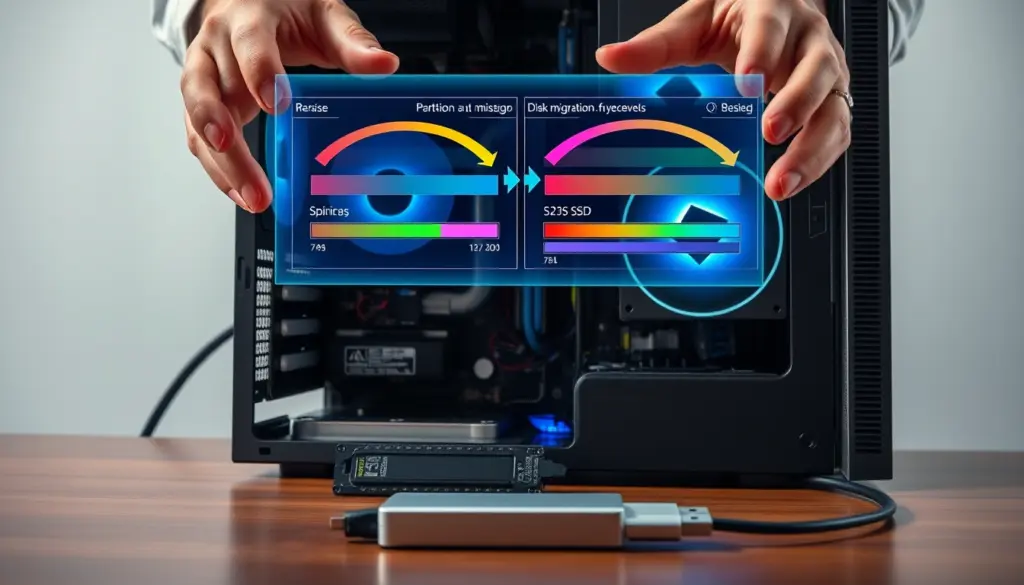
Running out of C drive space? Want to resize a partition, migrate Windows to an SSD, clone a system disk and more? Windows Disk Management may do some of these things, but for the rest, it is not enough. For background, see our recent coverage.
EaseUS Partition Master and MiniTool Partition Wizard are top-notch disk-management tools for Windows that have many common features. To decide between them, let’s look at partition management, C drive management, cloning, OS relocation, MBR/GPT and file system conversion, user friendliness, and some features that are free.
So, which is better? It depends on the tasks you need to perform.
EaseUS Partition Master vs MiniTool Partition Wizard: Overview
What Is EaseUS Partition Master?
EaseUS Partition Master serves as a Windows disk and partition management software for carrying out general storage operations. With its help, users can not only move and resize disks/partitions but also create, delete, format, and manage HDDs and SSDs.
EaseUS Partition Master is best fit for:
What Is MiniTool Partition Wizard?
MiniTool Partition Wizard is a Windows disk management program that has partition management as well as several disk-analysis and maintenance tools built in. The most fundamental functions are those of creating, resizing, merging, splitting, formatting, deleting, and wiping partitions.
Based on different editions, it also provides various other functionalities like disk cloning, OS migration, disk and file recovery, partition and file-system conversion, disk-speed testing, bad-sector checking, drive-health monitoring, and space analysis.
MiniTool Partition Wizard is recommended to:
What Do EaseUS and MiniTool Have in Common?
Basically, EaseUS Partition Master and MiniTool Partition Wizard help with almost the same things.
Other areas where the two products overlap are:
Key Takeaway
EaseUS Partition Master and MiniTool Partition Wizard are capable for most partitioning tasks that you will encounter daily. You only realize the differences when you focus on the capabilities of OS migration, cloning processes, file-system tools, disk analysis, high-level tools, limitations of free version, and workflow overall.
EaseUS Partition Master vs MiniTool Partition Wizard: Quick Comparison
Features
EaseUS Partition Master
MiniTool Partition Wizard
Partition Management
Extend C Drive
Resize/Move Partitions
Disk Cloning
OS Migration
✓*
✓*
MBR/GPT Conversion
✓*
✓*
File System Conversion
Partition Recovery
✓*
✓*
Disk Space Analysis
Disk Benchmarking
Ease of Use
Beginner-friendly
More technical
Best For
Everyday Windows management, cloning, and migration
Advanced disk utilities and analysis
* Availability and limitations may vary by edition.
Which One Is Better at a Glance?
The two programs cover many of the same core tasks, but their feature sets have different areas of focus.
EaseUS Partition Master
Choose EaseUS Partition Master if you need following features:
MiniTool Partition Wizard
Choose MiniTool Partition Wizard if you need the following features:
EaseUS Partition Master vs MiniTool: Feature Comparison
Extending and Managing the C Drive
EaseUS Partition Master and MiniTool Partition Wizard have the following operations in common: shrinking, resizing, moving, and extending partitions. If an unallocated space that is separated from C by another partition, both tools can move the latter and then extend C.
We ran both programs on the same Windows computer, with the C drive almost full. We created unallocated space behind another partition, so it was not directly available to C.
In EaseUS, we chose the partition lying between C and the free space, moved/resize feature to relocate it, then expanded the C drive to the newly located adjacent unallocated space. We carried out the pending operations to confirm the changes.
We used MiniTool’s move/resize and extend options for the same procedures.
We compared the number of steps, time required, reboot behavior, on-screen guidance, and final partition layout.
Either way, both programs got the job done. The reason for the difference is mostly the user interface and the number of actions that were required to achieve the workflow.
EaseUS is slightly better because its workflow requires fewer steps or makes the testing process clearer. Since both tools support the same basic partition operations, the main difference is likely in usability rather than features.
Disk Cloning: Which Is Better for Upgrading to an SSD?
Both EaseUS Partition Master and MiniTool Partition Wizard can clone hard disks and partitions.
The main differences are in cloning workflow, which devices you can clone from and to, handling boot problems, and whether the software is free or paid.
We cloned the same Windows system to a larger SSD using both tools. We compared:
EaseUS is a good fit for users focused on Windows drive upgrades when its cloning workflow requires fewer steps or less adjustment after cloning. MiniTool also supports system and disk cloning, so the tested workflow and edition limits should be considered.
OS Migration: Which Makes Moving Windows Easier?
Both EaseUS Partition Master and MiniTool Partition Wizard allow relocation of an existing Windows installation to a new drive.
So, what separates these two tools? It depends mainly on how they cope with the system partition, boot partition, steps needed, rebooting, and whether it’s possible for them to start the new Windows normally if they’ve migrated to the operating system. If the migration goes smoothly, you’ll probably end up with not just Windows, but your apps and settings as well.
We transferred the same Windows installation to another SSD with both tools. We looked at the setup steps, drive selection, system-partition handling, reboot process, and final boot result.
We also checked whether the migrated Windows installation works regularly without any additional changes.
If you are a user looking for an easy-to-use Windows migration wizard, EaseUS would be the perfect choice.
EaseUS is a strong fit for users who want a guided way to move an existing Windows installation to another drive without reinstalling Windows.
MBR vs. GPT Conversion
EaseUS Partition Master and MiniTool Partition Wizard both have the feature of MBR-to-GPT conversion without losing existing data. GPT is preferred over MBR these days because of UEFI. Most of the old systems are still running on BIOS with MBR partitions.
This also matters for Windows 11. GPT and UEFI are part of a modern Windows setup, but converting MBR to GPT alone does not make a PC eligible for Windows 11.
We ran an MBR-to-GPT converter test using both tools and looked at the procedures, system-disk handling, boot requirements, warnings, and edition limitations.
EaseUS offers a straightforward procedure: just selecting the disk, choosing Convert to GPT, and committing the changes. MiniTool does something similar as well, but its Free edition is limited by not being able to convert a system disk.
Both tools handle MBR-to-GPT conversion. EaseUS has the simpler workflow, while MiniTool’s system-disk conversion requires an advanced edition.
File System Conversion
Both EaseUS Partition Master and MiniTool Partition Wizard offer FAT32 ↔ NTFS conversion capabilities without formatting or data loss. In addition to that, EaseUS lists support for EXT2/3/4 file systems. MiniTool also covers conversion in both ways. However, NTFS → FAT32 requires a Pro or higher edition, while FAT32 → NTFS is available in its Free Edition.
We tested the available conversions and compared the supported formats, data preservation, and free-edition limits.
Conversion
EaseUS
MiniTool
Data Loss
Free?
FAT32 → NTFS
Supported
Supported
No
Yes
NTFS → FAT32
Supported
Supported
No
Paid on MiniTool
NTFS → exFAT
Supported
Not supported
No
Paid on EaseUS
Both tools convert FAT32 ↔ NTFS without destroying the data. EaseUS describes more file-system options, while MiniTool provides both NTFFS/FAT32 directions, but the NTFS → FAT32 one is only available with the purchase.
Other Advanced Disk Management Features
EaseUS Partition Master
MiniTool Partition Wizard
EaseUS Partition Master vs MiniTool: Which Is Easier to Use?
Interface and Navigation
EaseUS Partition Master: The main screen of EaseUS Partition Master features a combined disk map, partition list, a panel with all the main features and a list of operations that are waiting for your decision. You could say that the most important things are easy to get through, but that is not everything; you are also presented with the pending changes to review before you apply them.
MiniTool Partition Wizard: The interface of MiniTool Partition Wizard is made up of three main parts; it contains a disk map, a partition list, a toolbar, a section where you can do the work you want it done, and menu bar. It is very detailed disk/partition info, but the numerous menus and tools may be confusing and make interface quite a bit denser.
Step-by-Step Workflows
User Guidance and Risk Warnings
EaseUS Partition Master: Displays a list of the operations to be performed in the planned changes and confirms actions that will modify a partition. The cloning and migration workflows include the source and destination drives.
Mini Tool Partition Wizard: Utilizes pending operations, confirmation dialog boxes, and operation preview. Its wizards clearly delineate source and destination disks and provide warnings for operations that could impact data.
Ease-of-Use Verdict
EaseUS would be more ideal for beginners who desire step-by-step directions. MiniTool is still quite simple to use; however, the more extensive range of technical features they offer may appeal to those users who are more technically inclined.
What Can You Do with EaseUS Partition Master Free?
EaseUS Partition Master Free is available as a free-forever edition for Windows. It covers many basic partition and disk-management tasks, including:
However, some advanced features require the Pro edition, including system cloning, OS migration, full disk cloning, partition recovery, and WinPE Creator.
What Can You Do with MiniTool Partition Wizard Free?
MiniTool Partition Wizard Free covers many everyday disk-management tasks, including:
However, functionalities like partition/data recovery, system-disk cloning, OS migration, NTFS-to-FAT32 conversion, Dynamic Disk management, and WinPE bootable media creation require that you purchase a paid edition of the software.
This means that the free MiniTool provides users with quite a few useful tools for managing partitions and maintaining disks, while the paid editions bring in additional features including recovery, migration, and advanced disk operations.
Which Free Version Is Better for Your Needs?
Task
Better Choice
Basic partition management
Tie
Extend/resize partitions
EaseUS / Tie
Disk cloning
Based on current free-version support
OS migration
Based on current free-version support
Disk space analysis
MiniTool
Disk benchmarking
MiniTool
Beginner-friendly operation
EaseUS
Advanced disk utilities
Tie
*They both have certain free limitations. EaseUS Free can clone a partition for you, but if you want to clone an entire disk or even the system, you must get the paid license. For MiniTool Free, you are allowed to copy the data of the non-system partitions/disks, whereas for system disk copying and OS migration, you will need to purchase a license.
EaseUS Partition Master vs MiniTool: Pros and Cons
EaseUS Partition Master: Pros and Cons
Pros
Cons
MiniTool Partition Wizard: Pros and Cons
Pros
Cons
What Do Independent Reviews Say?
Third-Party Review Perspective
A July 2026, a G2 reviewer gave positive feedback for EaseUS Partition Master combining partition management, disk recovery, secure erasing, and creation of bootable recovery media in one software solution. User was impressed by how it offered a complete feature set as one can carry out diverse disk tasks on one platform seamlessly.
A reviewer from Trustpilot in July 2026 gave MiniTool Partition Wizard top marks for its many disk-management features such as partitioning, disk reorganization, and data recovery. Moreover, this reviewer also enjoyed their time contacting MiniTool’s support when they had to recover their license on account of changing PC.
EaseUS Partition Master vs MiniTool: Which One Should You Choose?
Choose EaseUS Partition Master When:
Choose MiniTool Partition Wizard If You:
Best Choice by Use Case
Use Case
Recommended
Extend C drive
EaseUS
Resize/move partitions
EaseUS / Tie
Clone HDD to SSD
EaseUS
Clone a Windows system disk
EaseUS
Migrate Windows
EaseUS
Convert MBR to GPT
Based on test results
Basic partition management
Tie
Analyze disk space
MiniTool
Benchmark a disk
MiniTool
Beginner-friendly disk management
EaseUS
Advanced disk utilities
Tie
Windows 11 upgrade preparation
EaseUS / Based on test results
Final Verdict
Both EaseUS Partition Master and MiniTool Partition Wizard can be considered partition management tools.
MiniTool Partition Wizard is suitable for technical users who need disk analysis, diagnostics, benchmarking, and more utilities.
On the other hand, EaseUS Partition Master is a partition tool that makes it simple for beginners and provides clear workflows for managing the C drive, cloning, upgrading to an SSD, and Windows migration.
Overall Recommendation
If you are a typical Windows user who has been looking for an efficient, hands-free utility to manage partitions, increase the size of your C drive, switch to an SSD, clone a disk, or move Windows to a new drive, then EaseUS Partition Master is definitely the one to go with, as it is more user-friendly of the two.